Connect Your AI Client to Sauce MCP
This guide shows how to connect a supported AI client to the hosted Sauce MCP server.
Prerequisites
- A Sauce Labs account.
- Your Sauce Labs username and access key.
- The data center your account uses (US West, US East, or EU Central).
- To use the real-device session and on-device interaction tools: private (dedicated) devices and Real Device Access API concurrency on your account. See Tools.
Find your access key
Your username and access key are available from the top navigation bar in the Sauce Labs dashboard. Click the key icon to reveal them, then copy your Username and Access Key.
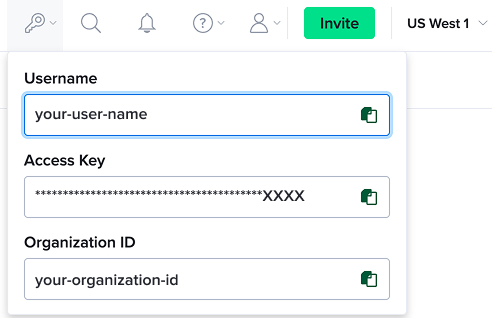
For full details, see Managing User Information.
Connection details
| Setting | Value |
|---|---|
| Transport | Streamable HTTP |
| Endpoint | https://mcp.saucelabs.com |
| Authentication | HTTP Basic Auth with your Sauce Labs username and access key |
Authentication uses HTTP Basic Auth. The credential is your username:access_key, Base64-encoded, sent in an Authorization: Basic <credentials> header. Many clients build this header for you when you provide a username and password. Tip: You can also set it as an environment variable for convenience:
export SAUCE_AUTH_TOKEN=$(echo -n "your_username:your_access_key" | base64)
Select your data center
Sauce MCP uses a single endpoint (https://mcp.saucelabs.com) for all data centers. The data center your requests are routed to is selected per connection through the optional X-Sauce-Region request header.
Accepted values are the canonical region keys US_WEST, US_EAST, and EU_CENTRAL (case-insensitive). If the header is missing or unrecognized, the server falls back to its default region (US_WEST) and logs a warning.
To switch regions, update the X-Sauce-Region header in your client config and reconnect. Switching mid-session is not supported. If a listing tool returns empty results unexpectedly, ask the agent to call get_active_region to confirm which data center it is connected to.
The configuration examples below include the X-Sauce-Region header. Replace <REGION> with US_WEST, US_EAST, or EU_CENTRAL. You can omit the header entirely to use the default (US_WEST).
Configure your client
 Claude Code
- Claude Desktop
 Cursor
 Windsurf
 VS Code
 IntelliJ
 Antigravity
 Gemini CLI
 Goose
Goose
claude mcp add --transport http sauce-labs https://mcp.saucelabs.com \
  --header "Authorization: Basic <BASE64_OF_USERNAME_COLON_ACCESSKEY>" \
  --header "X-Sauce-Region: <REGION>"
.mcp.json file in your project root (or to your user-level ~/.claude.json):{
"mcpServers": {
"sauce-labs": {
"type": "http",
"url": "https://mcp.saucelabs.com",
"headers": {
"Authorization": "Basic <BASE64_OF_USERNAME_COLON_ACCESSKEY>",
"X-Sauce-Region": "<REGION>"
}
}
}
}
<BASE64_OF_USERNAME_COLON_ACCESSKEY> with the Base64 encoding of your-username:your-access-key.claude_desktop_config.json (Settings → Developer → Edit Config). Claude Desktop connects to remote servers through the mcp-remote bridge:{
"mcpServers": {
"sauce-labs": {
"command": "npx",
"args": [
"-y",
"mcp-remote",
"https://mcp.saucelabs.com",
"--header",
"Authorization: Basic <BASE64_OF_USERNAME_COLON_ACCESSKEY>",
"--header",
"X-Sauce-Region: <REGION>"
]
}
}
}
~/.cursor/mcp.json (global) or .cursor/mcp.json (per project):{
"mcpServers": {
"sauce-labs": {
"url": "https://mcp.saucelabs.com",
"headers": {
"Authorization": "Basic <BASE64_OF_USERNAME_COLON_ACCESSKEY>",
"X-Sauce-Region": "<REGION>"
}
}
}
}
~/.codeium/windsurf/mcp_config.json):{
"mcpServers": {
"sauce-labs": {
"serverUrl": "https://mcp.saucelabs.com",
"headers": {
"Authorization": "Basic <BASE64_OF_USERNAME_COLON_ACCESSKEY>",
"X-Sauce-Region": "<REGION>"
}
}
}
}
.vscode/mcp.json in your workspace:{
"servers": {
"sauce-labs": {
"type": "http",
"url": "https://mcp.saucelabs.com",
"headers": {
"Authorization": "Basic <BASE64_OF_USERNAME_COLON_ACCESSKEY>",
"X-Sauce-Region": "<REGION>"
}
}
}
}
{
  "mcpServers": {
    "sauce-labs": {
      "url": "https://mcp.saucelabs.com",
      "headers": {
        "Authorization": "Basic <BASE64_OF_USERNAME_COLON_ACCESSKEY>",
        "X-Sauce-Region": "<REGION>"
      }
    }
  }
}
{
  "mcpServers": {
    "sauce-labs": {
      "serverUrl": "https://mcp.saucelabs.com",
      "headers": {
        "Authorization": "Basic <BASE64_OF_USERNAME_COLON_ACCESSKEY>",
        "X-Sauce-Region": "<REGION>"
      }
    }
  }
}
~/.gemini/settings.json:{
"mcpServers": {
"sauce-labs": {
"httpUrl": "https://mcp.saucelabs.com",
"headers": {
"Authorization": "Basic <BASE64_OF_USERNAME_COLON_ACCESSKEY>",
"X-Sauce-Region": "<REGION>"
}
}
}
}
- Type: Remote (Streamable HTTP)
- Endpoint:
https://mcp.saucelabs.com - Header:
Authorization: Basic <BASE64_OF_USERNAME_COLON_ACCESSKEY> - Header:
X-Sauce-Region: <REGION>
Verify the connection
In your AI client, ask:
What's my Sauce Labs account information?
If the connection works, the agent calls Sauce MCP and returns your account details. This prompt works on any account, since it does not require private devices or Real Device Access API concurrency.
Troubleshooting
- Authentication failed / 401: Recheck your username and access key and confirm the
Authorizationheader is correctly Base64-encoded. - Empty or unexpected results: Confirm your
X-Sauce-Regionheader points to the data center where your account and devices live. Ask the agent to callget_active_regionto check which data center it is connected to. Remember that region changes require reconnecting; mid-session switching is not supported. - Client can't reach the server: Confirm the endpoint URL is correct and that your client supports remote Streamable HTTP servers (Claude Desktop uses the
mcp-remotebridge above).