Landing Pages
A landing page provides a single page where testers can view your app information and install a specific build. You can customize the landing page settings, control who can access it, and choose which build is available for installation.
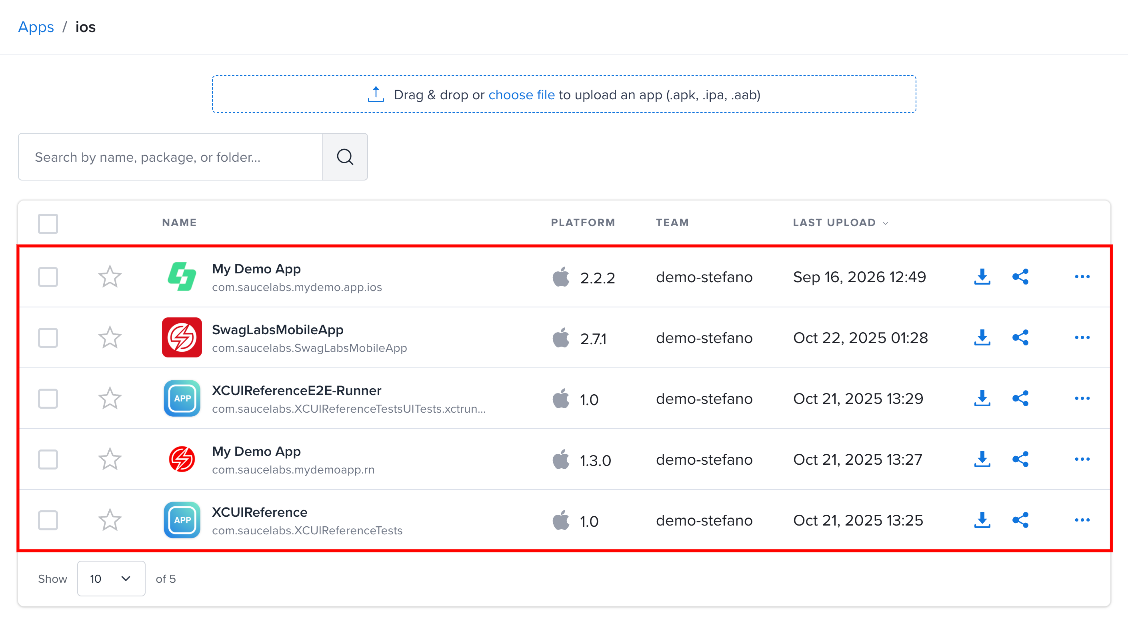
Step 1: Open the project for which you want to configure the landing page.
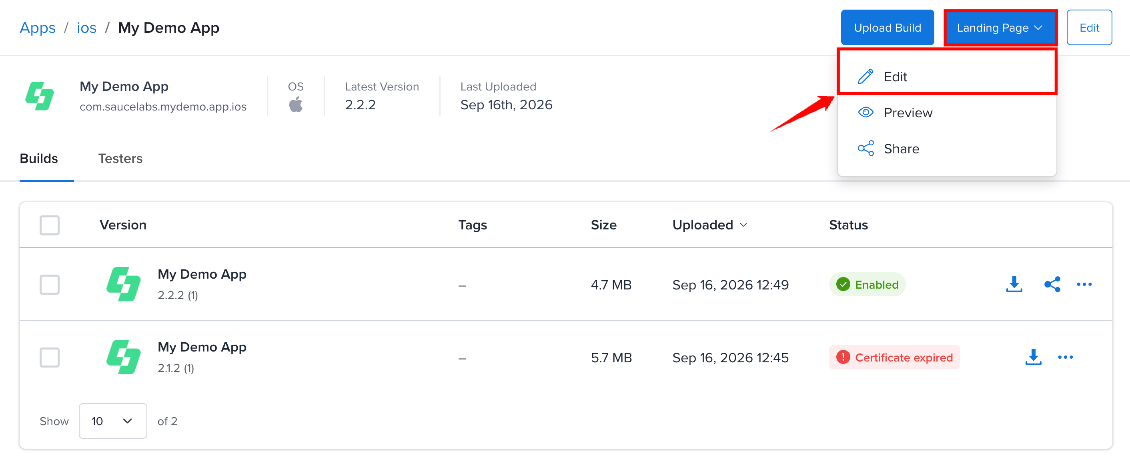
Step 2: Select the Landing Page dropdown in the top-right corner and select Edit. The Landing Page Settings page opens.
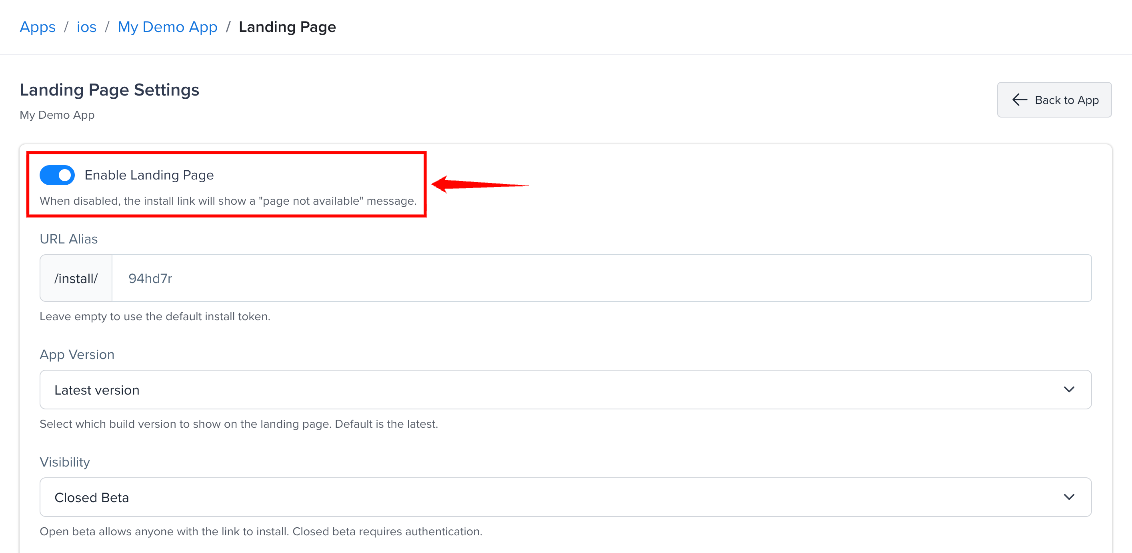
Step 3: Make sure Enable Landing Page is turned on. –When enabled, the landing page is available through its install link. If you disable it, the install link displays a page-not-available message.
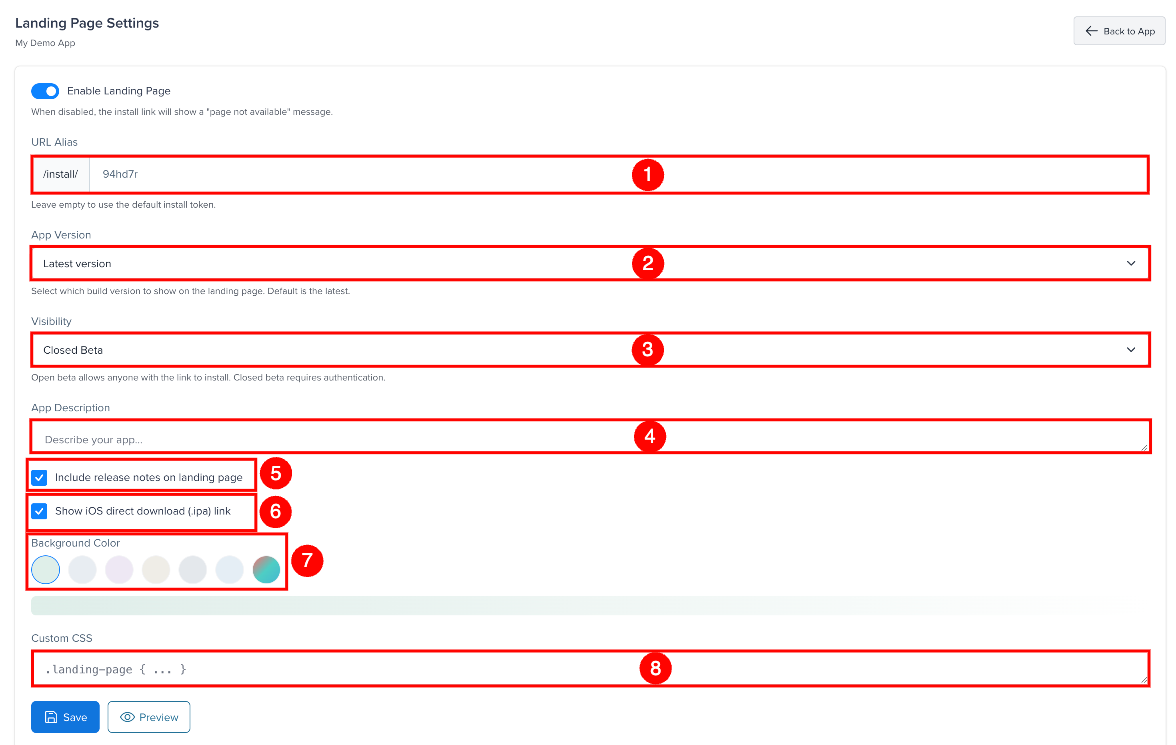
Step 4: Configure the landing page settings:
| Ref. | Setting | Description |
|---|---|---|
| 1 | URL Alias | Enter a custom alias for the landing page URL (e.g., /install/my-app instead of a random token). Leave it empty to use the default install token. 6–63 characters; letters, numbers, dots, hyphens and underscores only; must be unique across apps. |
| 2 | App Version | Select the app version that you want to display on the landing page. The default option is Latest version. |
| 3 | Visibility | Select Open Beta to allow anyone with the install link to access the page, or Closed Beta to require authentication. iOS ad-hoc and development builds are closed beta unless the organization turns on Allow ad-hoc apps to be open beta; an open ad-hoc app still installs only on devices in its provisioning profile, and the page shows how many devices that is. The organization's Require login before download setting forces closed beta for all apps. |
| 4 | App Description | Enter a description of your app. The description is displayed on the landing page. |
| 5 | Include release notes on landing page | Select this option to display the release notes for the selected build on the landing page. On by default. |
| 6 | Show iOS direct download (.ipa) link | Select this option to display a direct download link for the iOS .ipa file on the landing page. On by default. |
| 7 | Background Color | Choose one of six presets, or pick a custom color for the landing page. |
| 8 | Custom CSS | Enter custom CSS to customize the appearance of the landing page. |
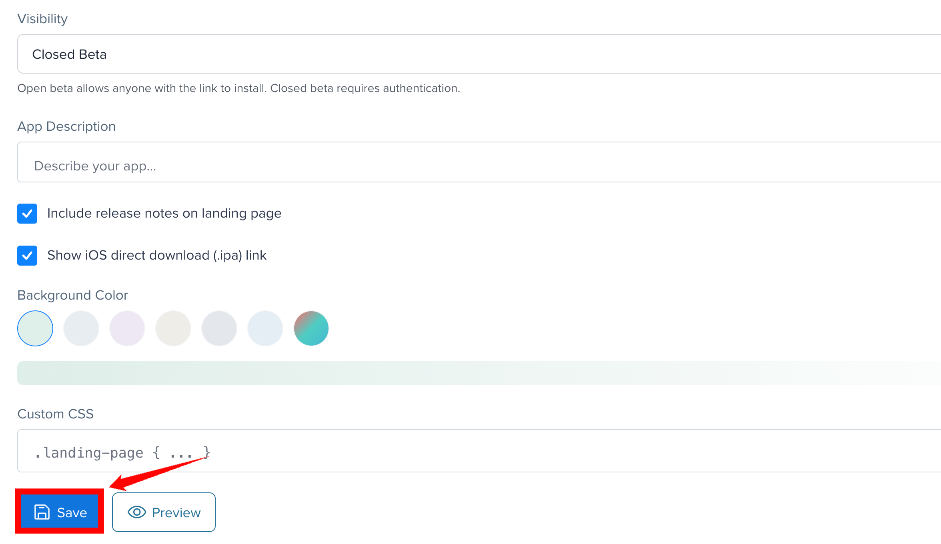
Step 5: Click Save to apply your settings.
Custom CSS Examples
Use the Custom CSS field to style the landing page. The CSS is injected into a <style> tag on the page. Some examples:
Change the background color:
.landing-bg-cover { background: #1a1a2e !important; }
Style the install card:
.card { border-radius: 16px; border: 2px solid #e94560; }
Change the button color:
.btn-primary, .btn-success { background-color: #e94560 !important; border-color: #e94560 !important; }
The Android install button uses .btn-success; iOS and generic buttons use .btn-primary.
Preview
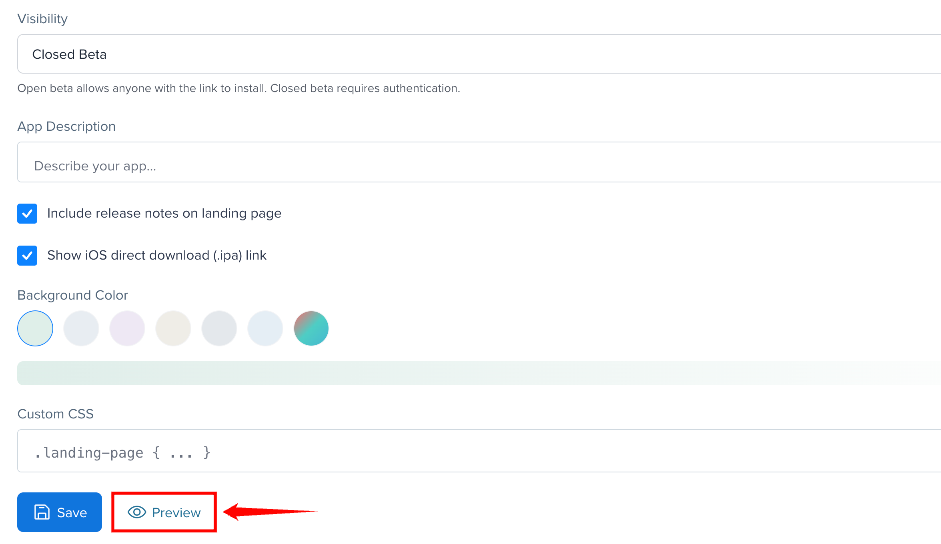
Use the Preview button on the edit page to see how your landing page looks before sharing it with testers.