Adding and Deleting Teams
Enterprise Plans only
If you are an organization admin, you can create and delete teams and assign concurrency limits to each team.Adding Teams
-
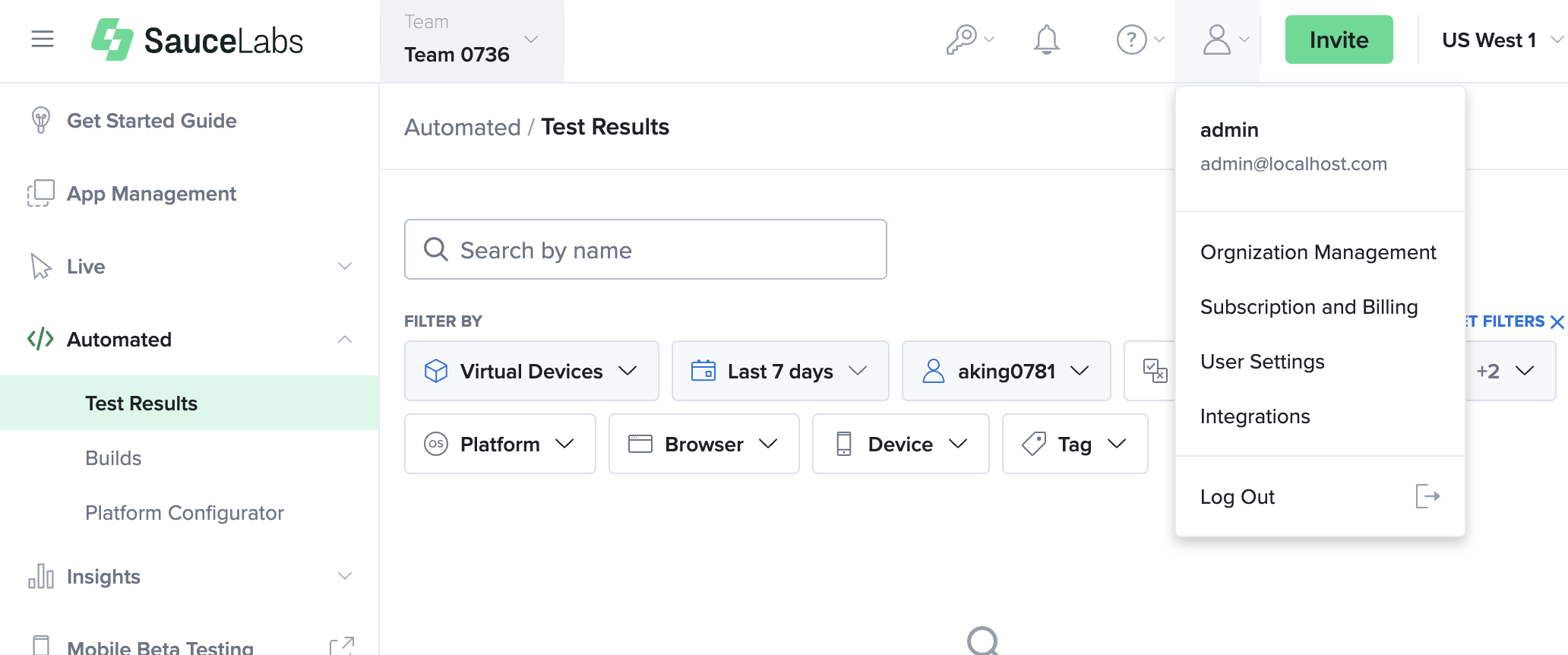
On Sauce Labs, click ACCOUNT and then click Organization Management.
-
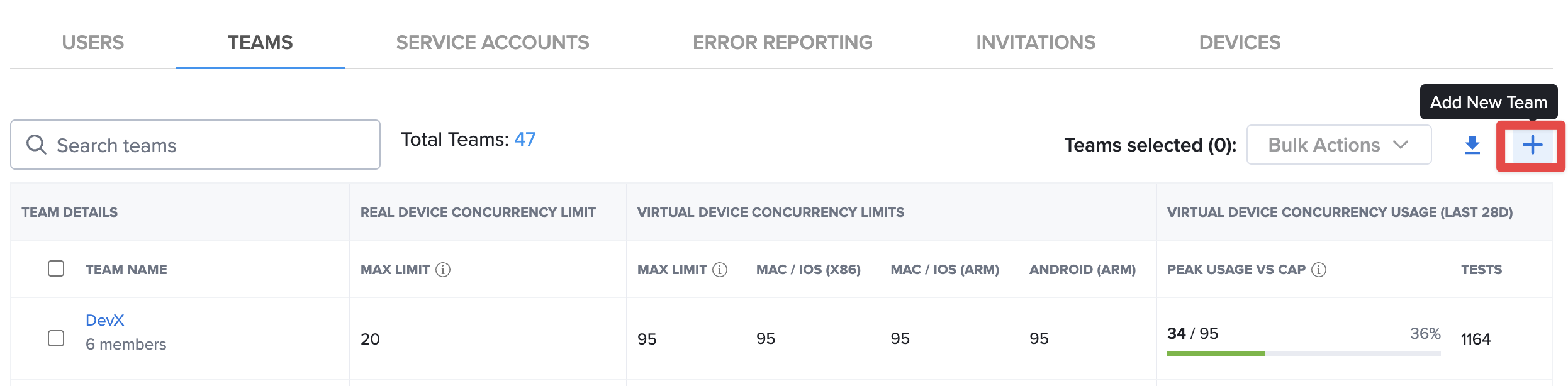
On the TEAMS tab, click the blue plus sign in the upper-right corner.
-
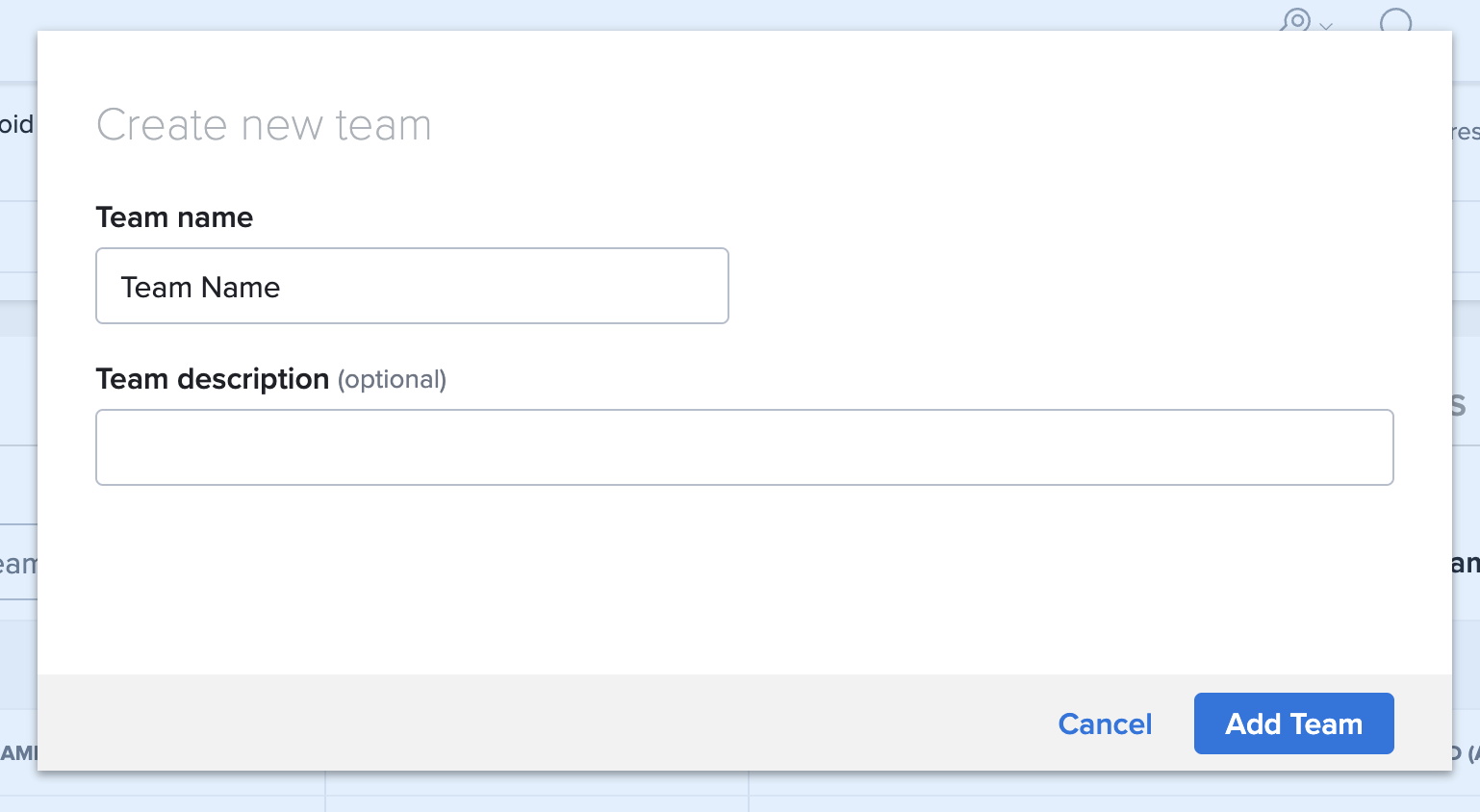
In the Create new team dialog, enter a Team name and, optionally, a Team description, and then click Add Team.
-
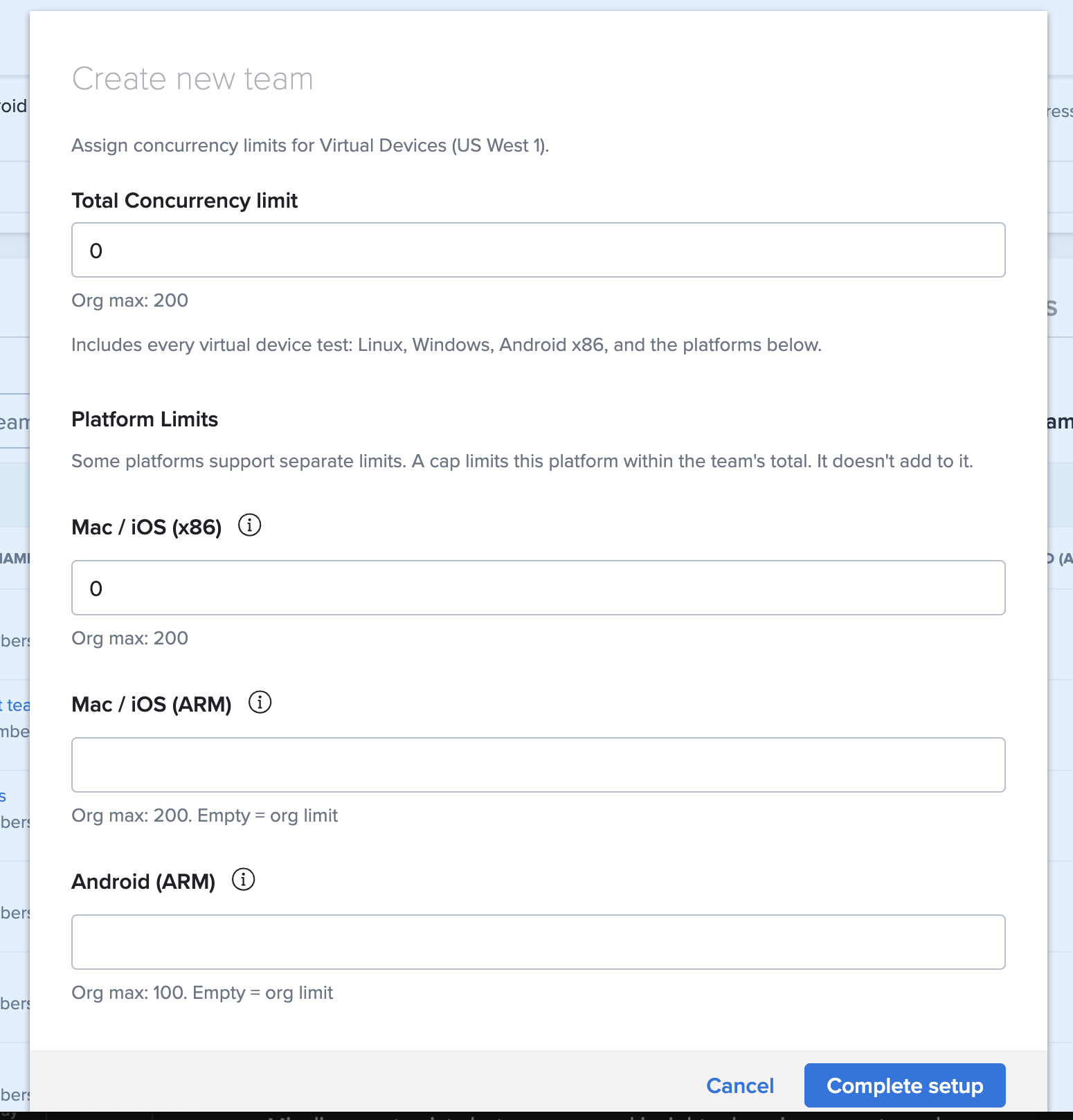
Assign the team's concurrency limits for Virtual Devices in the data center shown at the top of the dialog:
- Total Concurrency limit: the most virtual device tests the team can run at once, including Linux, Windows, Android x86, and the platforms below. This field needs a value.
- Platform Limits: caps for Mac / iOS (x86), Mac / iOS (ARM), and Android (ARM) inside the team's total. Mac / iOS (x86) needs a value. Leave Mac / iOS (ARM) or Android (ARM) empty to let the team use up to the organization limit.
The organization maximum for each type is shown under each field as Org max. For more information, see How Concurrency Limits Work.
-
Click Complete setup.
Deleting Teams
Teams that contain service accounts cannot be deleted. Remove all service accounts before attempting to delete the team.
However, if a team only contains user accounts, you can delete it by selecting a target team to which the users will be reassigned.
-
On Sauce Labs, click ACCOUNT and then click Organization Management.
-
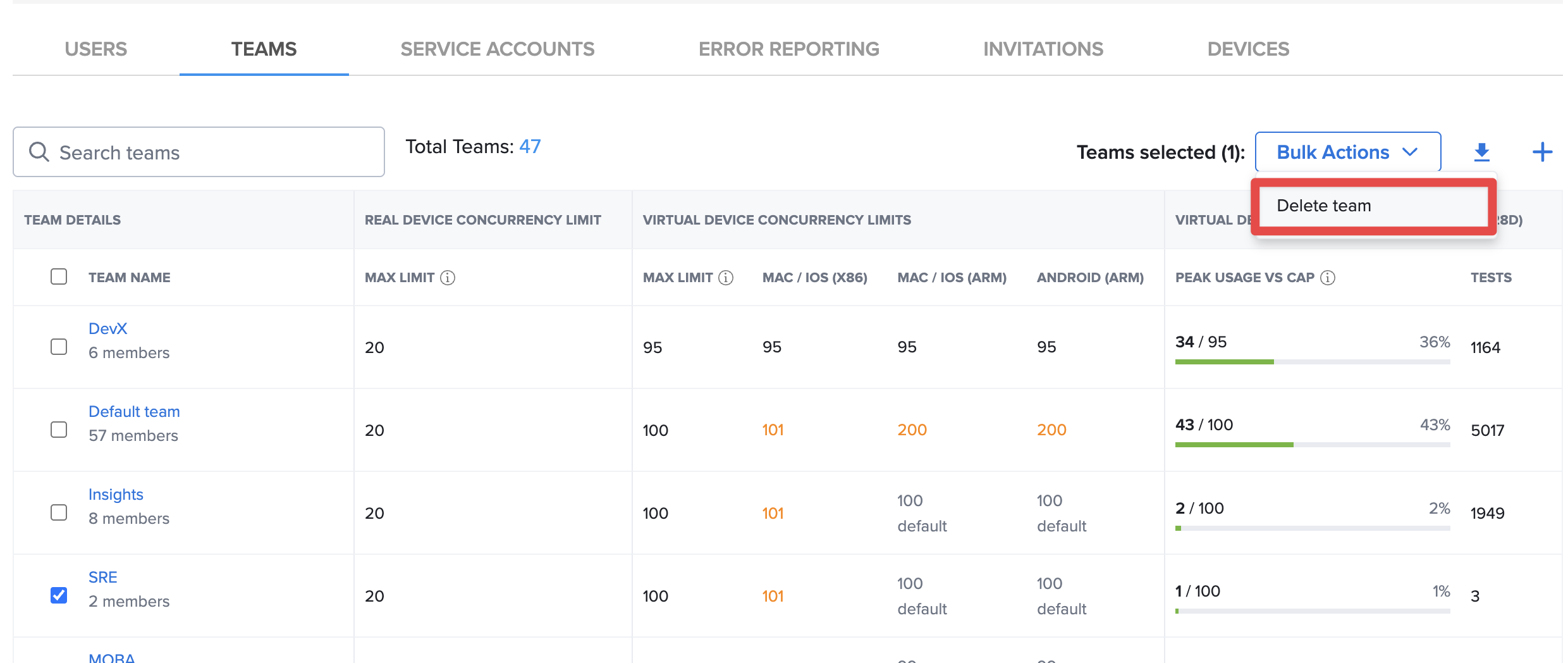
On the TEAMS tab, select the checkbox of the team or teams you want to delete.
-
Next to Teams selected, in the Bulk Actions dropdown list, click Delete team.
-
In the Confirm Delete box, select the team that you want to transfer the members of the deleted team to. If you don't select a new team, the team members will be moved to the default team.
-
Click Yes, Remove.