Maestro on SauceLabs with maestro-runner
Community Supported Virtual and Real Devices
Maestro is a YAML-based mobile UI testing framework, and maestro-runner is an open-source command-line tool, maintained by DeviceLab, that runs unmodified Maestro flows through Appium. The SauceLabs integration with maestro-runner lets you run your existing Maestro flows on SauceLabs Android emulators, iOS simulators, and Android and iOS real devices, with the video, device log, Appium log, and screenshots you get from any Appium job. This guide explains how to set up maestro-runner and use it with your SauceLabs tests.
This framework is built and maintained by its open-source project, not by Sauce Labs. Sauce Labs supports the cloud side: devices, browsers, endpoints, and test artifacts. Report framework issues to the project's issue tracker. Validated with the version noted below; later versions may differ.
SauceLabs validated this guide with maestro-runner 1.1.25 in September 2026. Use 1.1.25 or later; earlier versions could lose pre-created sessions to the SauceLabs idle timeout during parallel runs.
How It Works with SauceLabs
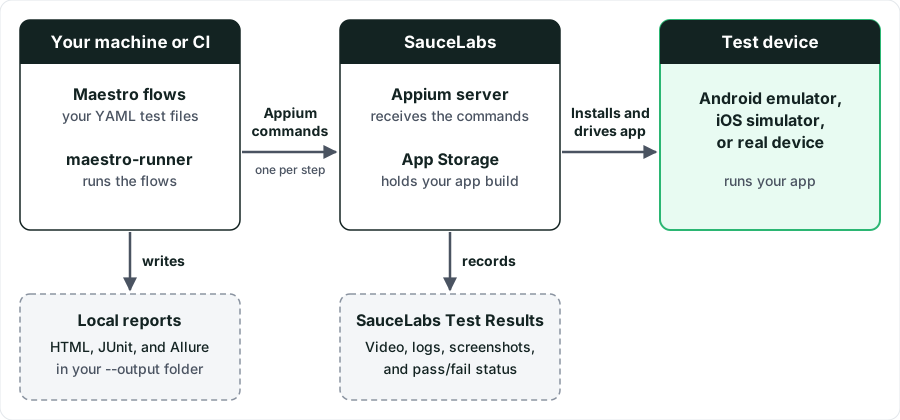
- You upload your app build to SauceLabs App Storage.
- You write one Appium capabilities file per SauceLabs target type: Android emulator, iOS simulator, Android real device, or iOS real device.
- maestro-runner opens an Appium session on SauceLabs with those capabilities and translates each Maestro step
(
tapOn,inputText,assertVisible, and so on) into Appium commands. - SauceLabs records the job like any Appium test: video, device log, Appium log, and a screenshot per command.
- When the flow finishes, maestro-runner names the SauceLabs job after the flow file, sets its pass or fail status through the SauceLabs REST API, and writes HTML, JUnit, and Allure reports locally.
maestro-runner runs on your machine or CI runner. Nothing runs on the SauceLabs side except the Appium session, and maestro-runner needs no SauceLabs specific configuration beyond the endpoint URL and capabilities.
Supported Targets
Verified by SauceLabs in September 2026 with maestro-runner 1.1.25 and the My Demo App flows.
| SauceLabs target | Validated on | Result |
|---|---|---|
| Android emulator | Google Pixel 9 Emulator, Android 16 | ✔️ flows pass |
| Android ARM emulator | Google ARM Medium Phone Emulator, Android 16 | ✔️ flows pass |
| iOS simulator | iPhone Simulator, iOS 18.0 | ✔️ flows pass |
| Android real device | Samsung Galaxy S26 Ultra, Android 16 | ✔️ flows pass |
| iOS real device | iPhone 16 Pro, iOS 18.7.1 | ✔️ flows pass |
Parallel suite (--parallel 4) | Four Android emulator sessions | ✔️ four concurrent jobs |
Session reuse (--parallel 1) | One iOS real device session | ✔️ one job, all flows |
Mobile web (browserName set) | Chrome on Android emulator | ❌ not supported |
Desktop web (--platform web) | SauceLabs desktop browsers | ❌ not supported |
Limitations
- Mobile web is not supported. maestro-runner's Appium driver parses the native UI hierarchy only. A SauceLabs
browser session returns HTML page source, so the first
assertVisiblefails withinvalid page source: no hierarchy element found. - Desktop web is not supported on SauceLabs. The runner's
--platform webmode launches a local Chrome and has no option to attach to a remote browser. - No Maestro step names in the SauceLabs job. Steps appear as Appium commands.
- Data center detection is by URL. The pass or fail update goes to
eu-central-1orus-east-4when the endpoint URL contains that name, otherwise tous-west-1. - Parallel emulator reports show one device. All concurrent emulator sessions report the same device ID, so the local report's per-device summary collapses to a single entry. The SauceLabs jobs are unaffected.
What You'll Need
Before you begin, make sure you have:
- A SauceLabs account (Log in or sign up for a free trial license).
- Your SauceLabs Username and Access Key.
- macOS or Linux with
curl, or Node.js if you prefer to install maestro-runner from npm. - Your app builds: an
.apkfor Android, an.ipafor iOS real devices, and a zipped.appsimulator build for iOS simulators. To try the steps without your own app, use the SauceLabs My Demo App builds in the SauceLabs maestro-runner demo repository. - Maestro flows. The demo repository includes flows for the My Demo App on both platforms.
Authentication
maestro-runner authenticates to SauceLabs with your SauceLabs username and access key, which you find under User Settings. Any SauceLabs user who can run Appium tests and upload to App Storage can use maestro-runner; no additional permissions are needed.
You pass the credentials to maestro-runner inside the SauceLabs Appium endpoint URL (--appium-url), which
maestro-runner also uses to set the job's pass or fail status. Store them as the SAUCE_USERNAME and
SAUCE_ACCESS_KEY environment variables, or in your CI system's secret store, so you never write them into flows,
capabilities files, or CI configuration.
maestro-runner prints the full --appium-url, including your access key, in its Connecting to Appium server log
line. It writes the same line into maestro-runner.log inside every report directory, and it writes the URL into the
--appium-session-file. Before you adopt it in CI:
- Mask
SAUCE_ACCESS_KEYin your CI system so it is redacted from console output. - Do not publish report directories or session files as build artifacts without removing the key.
- Do not commit report or session files to source control.
Check the maestro-runner release notes for a fix to the credential echo before relying on unmasked logs.
Set Up with maestro-runner
Step 1: Install maestro-runner
Install maestro-runner 1.1.25 or later. It is a single binary with no Java or Node.js requirement.
Shell (macOS and Linux):
curl -fsSL https://open.devicelab.dev/install/maestro-runner | bash

# A specific version
curl -fsSL https://open.devicelab.dev/install/maestro-runner | bash -s -- --version 1.1.28
npm, if your project already uses Node.js:
npm install --save-dev maestro-runner
npx maestro-runner --version
You can also download a release binary from the maestro-runner GitHub releases.
If you installed with the shell script or a release binary, run maestro-runner instead of npx maestro-runner in
the commands below.
Step 2: Link Your SauceLabs Account
Check whether your SauceLabs credentials are already set as environment variables:
echo $SAUCE_USERNAME
echo $SAUCE_ACCESS_KEY
If nothing is returned, set them:
export SAUCE_USERNAME="your Sauce username"
export SAUCE_ACCESS_KEY="your Sauce access key"
Step 3: Upload Your App to SauceLabs
maestro-runner installs your app from SauceLabs App Storage. Upload each build to the data center you will run in, and keep the file name that your capabilities file references.
curl -u "$SAUCE_USERNAME:$SAUCE_ACCESS_KEY" --location \
  --request POST 'https://api.us-west-1.saucelabs.com/v1/storage/upload' \
  --form 'payload=@"SauceLabs-Demo-App.apk"' \
  --form 'name="SauceLabs-Demo-App.apk"'
Repeat for the .ipa and the simulator .zip. You can also upload through
SauceLabs > App Management or the
Upload File to App Storage API.
App Storage is per data center. If you switch between us-west-1, eu-central-1, and us-east-4, upload the
build again in the new data center.
Step 4: Create a Capabilities File for Each Target
maestro-runner reads standard Appium capabilities from a JSON file passed with --caps. Create one file per Sauce
Labs target type. The examples below are the files SauceLabs validated with the My Demo App; replace the appium:app
file name, and for Android the package and activity, with your own.
- Android Emulator
- Android ARM Emulator
- iOS Simulator
- Android Real Device
- iOS Real Device
{
  "platformName": "Android",
  "appium:automationName": "UiAutomator2",
  "appium:deviceName": "Google Pixel 9 Emulator",
  "appium:platformVersion": "16.0",
  "appium:app": "storage:filename=SauceLabs-Demo-App.apk",
  "appium:appPackage": "com.saucelabs.mydemoapp.android",
  "appium:appActivity": ".view.activities.SplashActivity",
  "appium:appWaitActivity": "*",
  "sauce:options": {
    "build": "maestro-android-emulator",
    "appiumVersion": "2.11.0"
  }
}
{
  "platformName": "Android",
  "appium:automationName": "UiAutomator2",
  "appium:deviceName": "Google ARM Medium Phone Emulator",
  "appium:platformVersion": "16.0",
  "appium:app": "storage:filename=SauceLabs-Demo-App.apk",
  "appium:appPackage": "com.saucelabs.mydemoapp.android",
  "appium:appActivity": ".view.activities.SplashActivity",
  "appium:appWaitActivity": "*",
  "sauce:options": {
    "build": "maestro-android-arm-emulator",
    "appiumVersion": "2.11.0"
  }
}
{
  "platformName": "iOS",
  "appium:automationName": "XCUITest",
  "appium:deviceName": "iPhone Simulator",
  "appium:platformVersion": "18.0",
  "appium:app": "storage:filename=SauceLabs-Demo-App.Simulator.zip",
  "appium:iosInstallPause": 5000,
  "appium:appLaunchStateTimeoutSec": 120,
  "appium:settings": {
    "waitForIdleTimeout": 3000,
    "animationCoolOffTimeout": 2
  },
  "sauce:options": {
    "build": "maestro-ios-simulator",
    "appiumVersion": "2.11.3"
  }
}
{
  "platformName": "Android",
  "appium:automationName": "UiAutomator2",
  "appium:deviceName": "Samsung.*",
  "appium:platformVersion": "^1[6-7].*",
  "appium:app": "storage:filename=SauceLabs-Demo-App.apk",
  "sauce:options": {
    "build": "maestro-android-real-device",
    "appiumVersion": "latest"
  }
}
{
  "platformName": "iOS",
  "appium:automationName": "XCUITest",
  "appium:deviceName": "iPhone.*",
  "appium:platformVersion": "^(18|26).*",
  "appium:app": "storage:filename=SauceLabs-Demo-App.ipa",
  "sauce:options": {
    "build": "maestro-ios-real-device",
    "appiumVersion": "latest",
    "resigningEnabled": true
  }
}
Points to note:
appium:appuses thestorage:filename=form, so the file name must match your App Storage upload exactly.- Emulator and simulator names and OS versions come from the Platform Configurator. ARM emulators are described on the Android Emulators page.
- Real device capabilities use regular expressions for
appium:deviceNameandappium:platformVersionso SauceLabs can allocate any matching device. See Appium on Real Devices. - iOS real devices need
resigningEnabled: trueso SauceLabs can install your.ipa. iOS simulators need the simulator build, not the.ipa. - Pin
appiumVersionto a version listed on the Appium Versions page. - Leave your username and access key out of the file. maestro-runner takes them from the endpoint URL in Run a Flow.
- Set
buildso you can find all the jobs from one run in Test Results. Addnameonly if you want a fixed job name instead of the flow name.
Verify the Integration
- Run the
login_standard_user.yamlflow on an Android emulator with the command in Run a Flow. - Open Automated > Test Results and filter by the build
maestro-android-emulator. - Confirm that a job named
login_standard_userappears with a Passed status, a video of the flow, and the Appium log.
Use the Integration
After you set up the integration, you can run your Maestro flows on any supported SauceLabs target.
Run a Flow
Pass the SauceLabs Appium endpoint, with your credentials, as --appium-url, and the capabilities file for the
target you want. The last argument is a flow file or a directory of flows.
export SAUCE_HUB="https://$SAUCE_USERNAME:$SAUCE_ACCESS_KEY@ondemand.us-west-1.saucelabs.com/wd/hub"

npx maestro-runner --driver appium --appium-url "$SAUCE_HUB" \
  --caps provider-caps/android-emulator.json \
  test --output results/android-emulator flows/android/login_standard_user.yaml
For the EU Central or US East data centers, replace us-west-1 with eu-central-1 or us-east-4. See
Data Center Endpoints.
The flow itself is ordinary Maestro YAML. Nothing in it refers to SauceLabs:
appId: com.saucelabs.mydemoapp.android
name: Login - standard user
tags:
  - smoke
  - login
---
- assertVisible:
    id: "productRV"
- tapOn:
    id: "menuIV"
- tapOn: "Log In"
- tapOn:
    id: "nameET"
- inputText: "bod@example.com"
- tapOn:
    id: "passwordET"
- inputText: "10203040"
- hideKeyboard
- tapOn:
    id: "loginBtn"
- assertVisible:
    id: "menuIV"
Command-Line Options
This guide uses the following maestro-runner options with SauceLabs. For the full list, see the maestro-runner CLI reference.
| Option | Description | Required | Example |
|---|---|---|---|
--driver | Driver to use. Must be appium for SauceLabs. | Yes | appium |
--appium-url | SauceLabs Appium endpoint, including your credentials. | Yes | "$SAUCE_HUB" |
--caps | Appium capabilities file for the target. | Yes | provider-caps/android-emulator.json |
test <path> | Flow file, or a directory of flows, to run. | Yes | flows/android/ |
--output | Directory for the HTML, JUnit, and Allure reports. | No | results/android-emulator |
--parallel | Maximum number of concurrent SauceLabs sessions. See Running Suites in Parallel. | No | 4 |
--include-tags | Run only flows with these tags in their YAML header. | No | smoke |
--exclude-tags | Skip flows with these tags in their YAML header. | No | login |
--appium-session-file | File that receives the Appium session IDs of the running sessions. | No | sessions.json |
--flatten | Write reports directly into --output instead of a timestamped subdirectory. | No | — |
Running Suites in Parallel
maestro-runner can run a directory of flows across several SauceLabs sessions at once, or run them all in one session.
npx maestro-runner --driver appium --appium-url "$SAUCE_HUB" \
  --caps provider-caps/android-emulator.json \
  test --parallel 4 --output results/android-parallel flows/android/
npx maestro-runner --driver appium --appium-url "$SAUCE_HUB" \
  --caps provider-caps/ios-real-device.json \
  test --parallel 1 --output results/ios-suite flows/ios/
--parallel Nstarts up to N SauceLabs sessions and feeds flows to them from a queue. Each session is one SauceLabs job. The runner never starts more sessions than you have flows, and your SauceLabs concurrency limit still applies.--parallel 1over a directory runs every flow in a single session, which appears as a single job. Start each flow withlaunchAppso Maestro restarts the app between flows.--include-tagsand--exclude-tagsselect flows by thetagsin their YAML header.- Flow discovery is one level deep:
test flows/android/runs only the.yamlfiles directly inside that directory. Keep one directory per platform and run each with its own--capsfile. --appium-session-file sessions.jsonwrites the Appium session IDs of the running sessions. On emulators and simulators the Appium session ID is also the SauceLabs job ID. On real devices the job ID differs, so use thebuildname to find jobs.--flattenwrites reports directly into--outputinstead of a timestamped subdirectory, which is easier to archive from CI.
View Your Results
maestro-runner prints each step as it runs and writes HTML, JUnit, and Allure reports to the --output directory.
The SauceLabs job is available as soon as the session ends under
Automated > Test Results for emulators and simulators, or
Real Devices for real devices. Filter by the build value you set in
Step 4.
How Jobs Appear in SauceLabs
- Name: the flow file's base name, for example
login_standard_user. When one session runs several flows, the job takes the first flow's name. Setnameinsauce:optionsfor a fixed name. - Status: maestro-runner marks the job passed or failed when the run finishes. It picks the REST API endpoint from
the data center in your
--appium-url(us-west-1,eu-central-1, orus-east-4). - Framework: SauceLabs shows the job as an Appium test. Maestro steps appear as the Appium commands they were translated into, not as named Maestro steps, and there are no per-flow annotations in the job.
- Artifacts: video, device log, Appium log, and a screenshot per command, exactly as for any Appium job.
- Reports: the Maestro-style HTML, JUnit, and Allure reports exist only in your local
--outputdirectory. They do not include the SauceLabs job link, so use--appium-session-fileor thebuildname to cross-reference.
Troubleshooting
invalid page source: no hierarchy element found on the first step
Invalid version format used when the session starts
appiumVersion: "latest" was used with a browser session. Pin a version from the
Appium Versions page.iOS real device install or launch fails
resigningEnabled: true to sauce:options, and use the .ipa, not the simulator build.iOS simulator install fails
.app simulator build in appium:app, not the .ipa.Parallel sessions end before their flows start
Flows in subdirectories are skipped
test at the directory that contains the flow files.The runner reports Update available
More Information
- Explore maestro-runner on GitHub and the maestro-runner CLI reference from DeviceLab.
- Read the Maestro documentation for flow syntax and commands.
- Clone the SauceLabs maestro-runner demo repository for flows, capabilities files, and demo app builds for every target in this guide.
- See Appium on SauceLabs for capabilities, device selection, and Appium versions.
- Review Community Frameworks for the support model that applies to this guide.