Android Live Accessibility Testing
Real Devices Only Android Only Live Testing Only
TalkBack is Android's built-in screen reader. Sauce Labs allows you to enable TalkBack on real devices with a single click during live testing sessions, without going to the OS settings. You can navigate through elements using the keyboard and hear audio feedback for each focused element.
What You'll Need
- A Sauce Labs account (Log in or sign up for a free trial license).
- An Android real device session (Live Testing).
- Android 12 or above.
- Private devices only. Reach out to our Support Team or your Sauce Labs representative to get this configured.
Enabling TalkBack
- Start a Live Testing session on an Android real device.
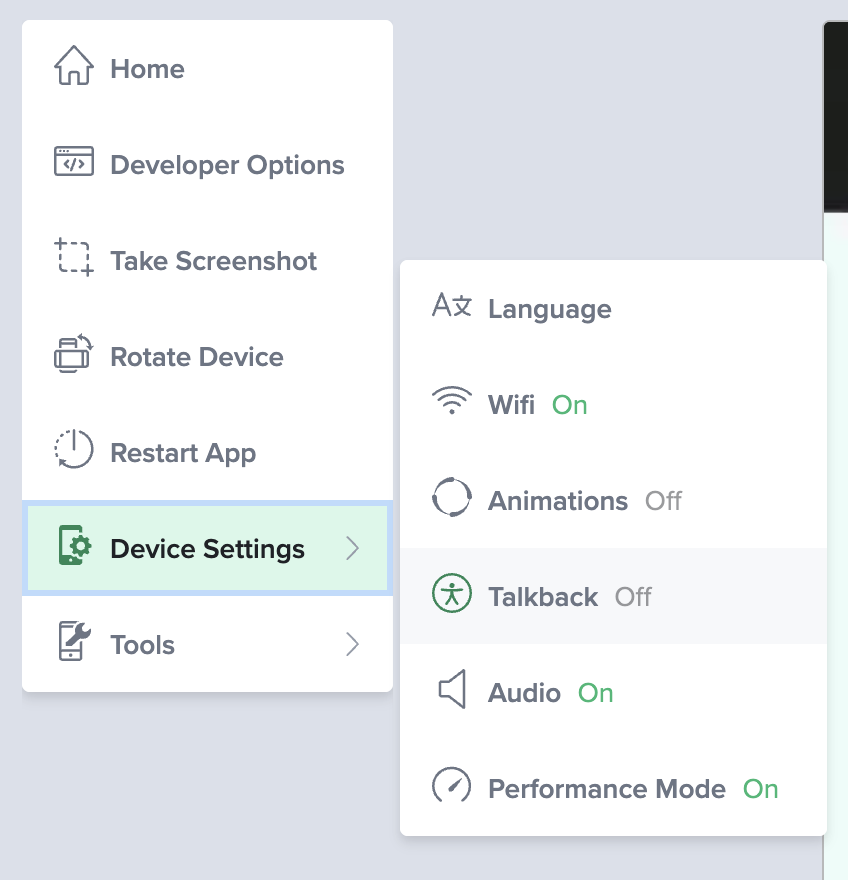
- Open the Device Settings from the left side toolbar.
- Select and toggle TalkBack.
- Skip with OK or Cancel the native TalkBack guide.
Keyboard Navigation
You can use the keyboard to navigate through accessible elements:
| Keyboard Shortcut | Action |
|---|---|
| Arrow Keys (Up, Down, Left, Right) | Navigate through elements |
| Enter | Activate the focused element |
Audio Feedback
Text-to-speech audio of the focused element is streamed to your browser as you interact with the device. For details on audio capture and streaming setup, see Audio Capture.
note
Text-to-speech audio is not available for download once the session is over.
Limitations
- TalkBack is only supported on private devices. Contact our Support Team to get this configured.
- Android 12 or above is required.
- Website testing is not yet available on Android.
More Information
- TalkBack official documentation
- Audio Capture: Audio capture and streaming on Android devices.
- Live Mobile App Testing: Overview of live testing features on real devices.