Data Variables
Data Variables allow you to store reusable values, such as usernames, passwords, URLs, and other test data, separately from your test prompts. Instead of entering these values directly in a prompt, you can reference them using variables, making your tests easier to maintain at scale and helping protect sensitive information.
How Variables Work
Scopes
Every variable belongs to a scope that determines who can use it and where it applies.
| Scope | Description |
|---|---|
| Org | Available to every team in your organization. Can be edited or deleted only by the team that created it. |
| Team | Available only to members of the team that created it. |
| Test suite | Available only to test cases in a specific test suite. Managed through the API. |
| Test case | Available only to a specific test case. Managed through the API. |
Variable names must be unique in a scope, but the same name can exist in several scopes. See Resolution Order for how Sauce AI chooses between them.
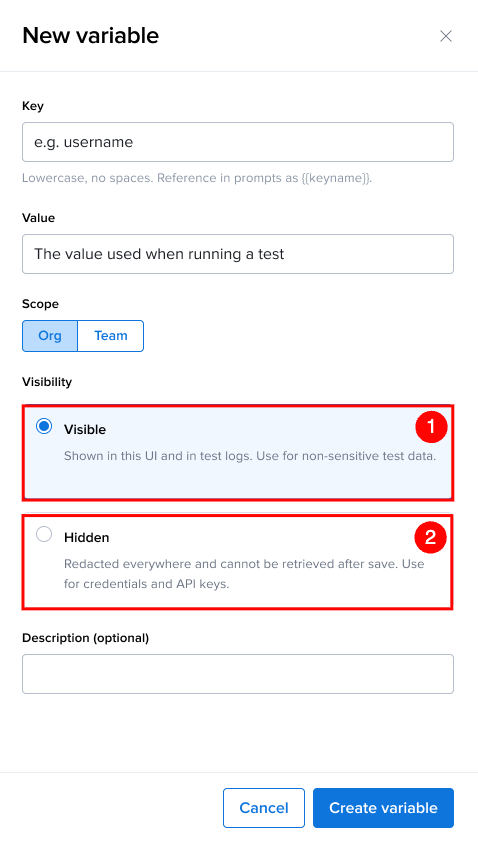
Visibility Options
Choose a visibility level based on the sensitivity of the data stored in the variable.
| Ref. | Visibility | Description | Recommended Use |
|---|---|---|---|
| 1 | Visible | Displays the variable value in the user interface and test logs. | Non-sensitive test data, URLs, sample values, and reusable inputs. |
| 2 | Hidden | Hides the variable value after it is saved. The value is redacted throughout the user interface and is securely resolved during test execution. | Passwords, tokens, or other moderately sensitive information. |
Hidden variables cannot be viewed after they are created. Ensure the value is correct before saving the variable.
How Variable Values Are Protected
Variable values are never included in the prompt sent to the AI model. The model only sees the variable reference, for example {{team:password}}, and is instructed to use that exact reference in the generated test steps. The reference is replaced with the stored value only at the moment the step is executed against the browser or device. Once a value has been entered into the application under test, it may be visible in the page screenshots the model uses to decide its next step, unless the application masks it (for example, a password field).
For hidden (secret) variables, if a step fails and the error message contains the secret value, the value is masked and replaced with the original {{...}} reference. Generated steps continue to show the reference rather than the value because the AI is instructed to preserve it.
Manage Variables
Create a New Variable
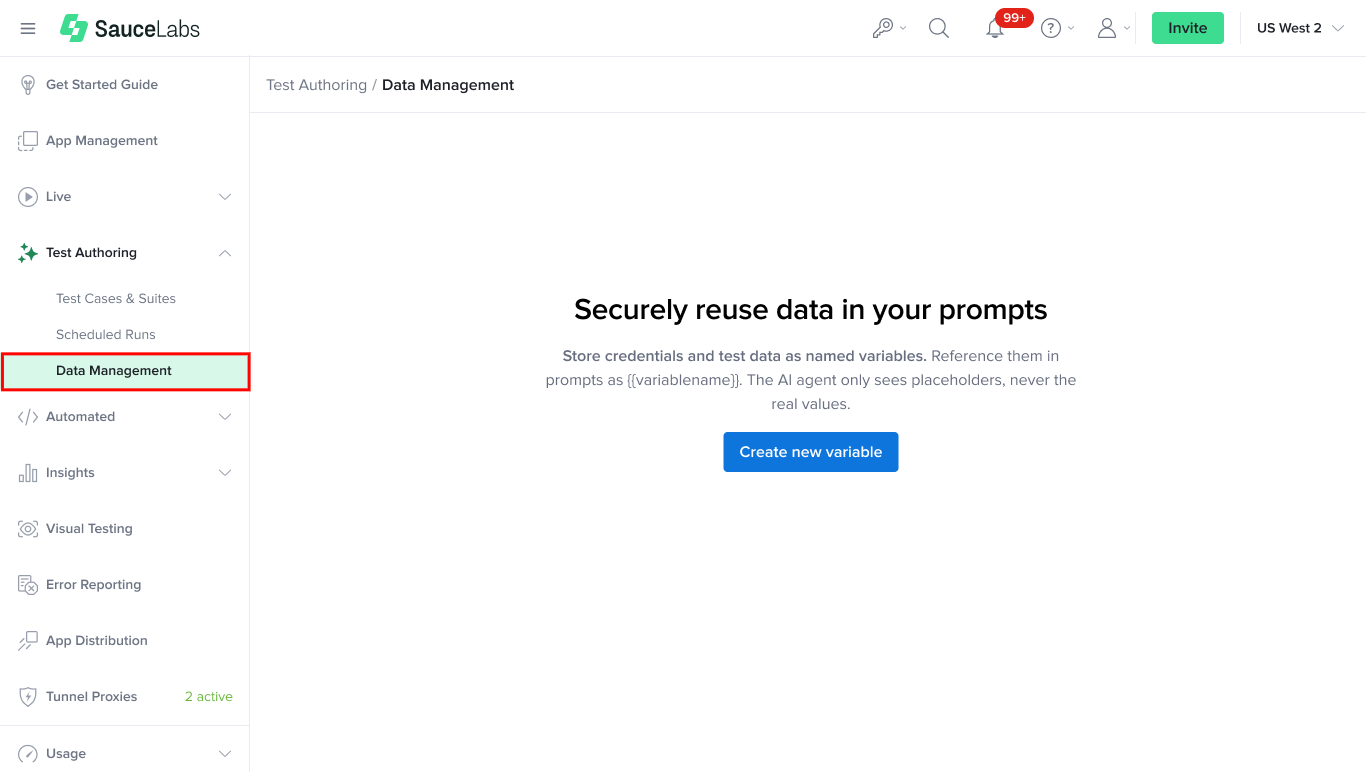
Step 1: From the left navigation menu, select Test Authoring and select Data Management from the dropdown list.
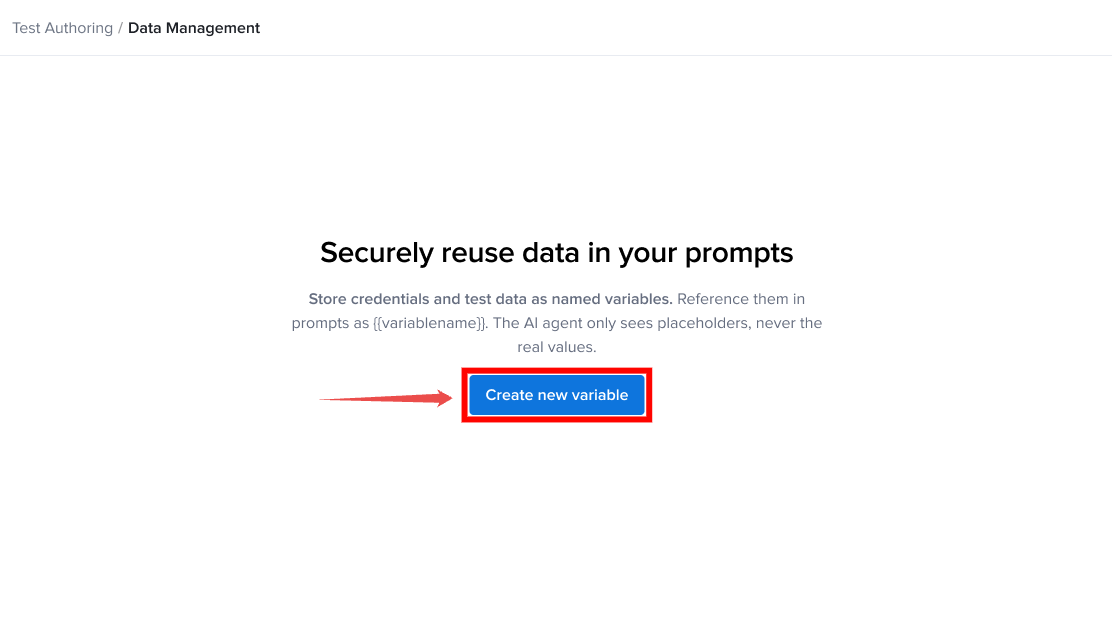
Step 2: Click Create Variable.
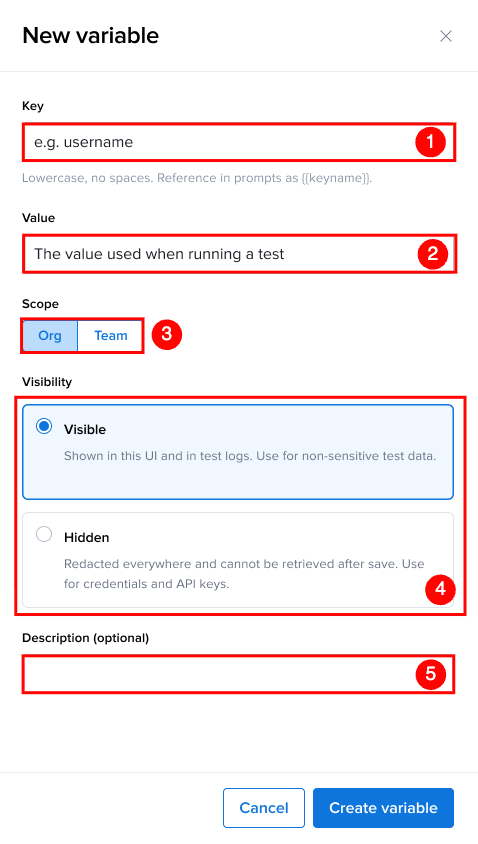
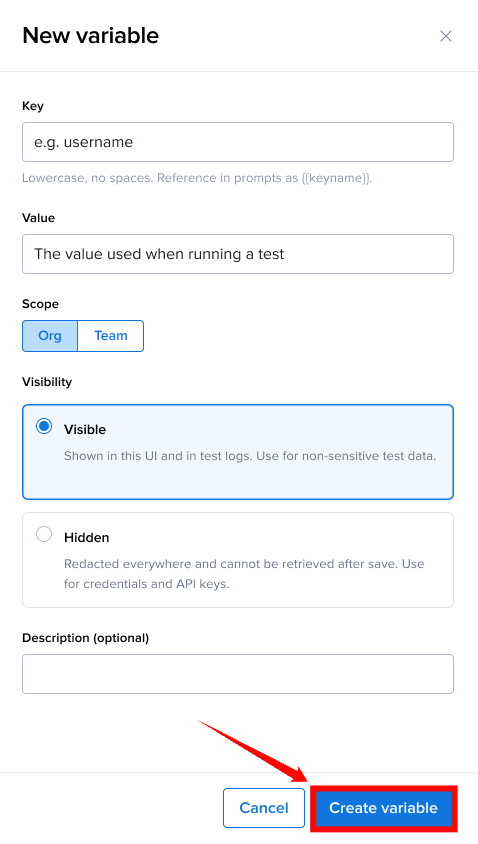
Step 3: In the Create Variable dialog, provide the required information for the variable.
| Ref. | Field | Description |
|---|---|---|
| 1 | Key | Enter a unique variable name. Use lowercase letters, digits, and underscores (_) only, without spaces. The variable can later be referenced in prompts using the format {{variable_name}}. |
| 2 | Value | Enter the value that the variable will store. This value is used whenever the variable is referenced during test execution. |
| 3 | Scope | Choose where the variable is available. Org makes the variable accessible across the entire organization, while Team limits access to members of the selected team. |
| 4 | Visibility | Select how the variable value is displayed and protected. Choose Visible or Hidden based on the sensitivity of the stored data. For more information, see Visibility Options |
| 5 | Description (Optional) | Provide an optional description to help other users understand the purpose of the variable. |
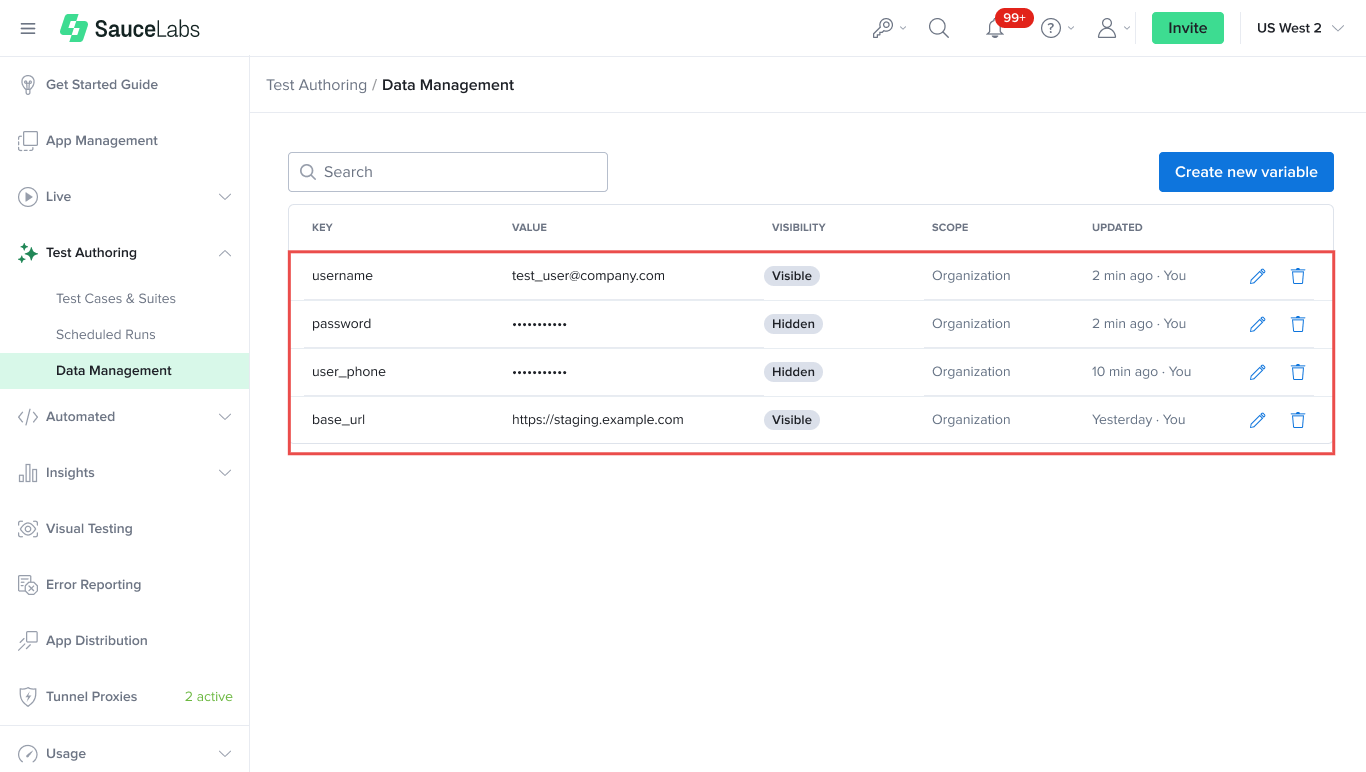
Step 4: Click Create variable. The variable is saved to Data Management and automatically inserted into your test prompt using the {{variable_name}} syntax.
After the variable is created, it is stored in Data Management and can be reused across multiple test cases by referencing it in your prompts using the {{variable_name}} syntax.
Edit a Variable
You can edit an existing variable to update its value, scope, visibility, or description. Changes are automatically applied wherever the variable is referenced in future test runs.
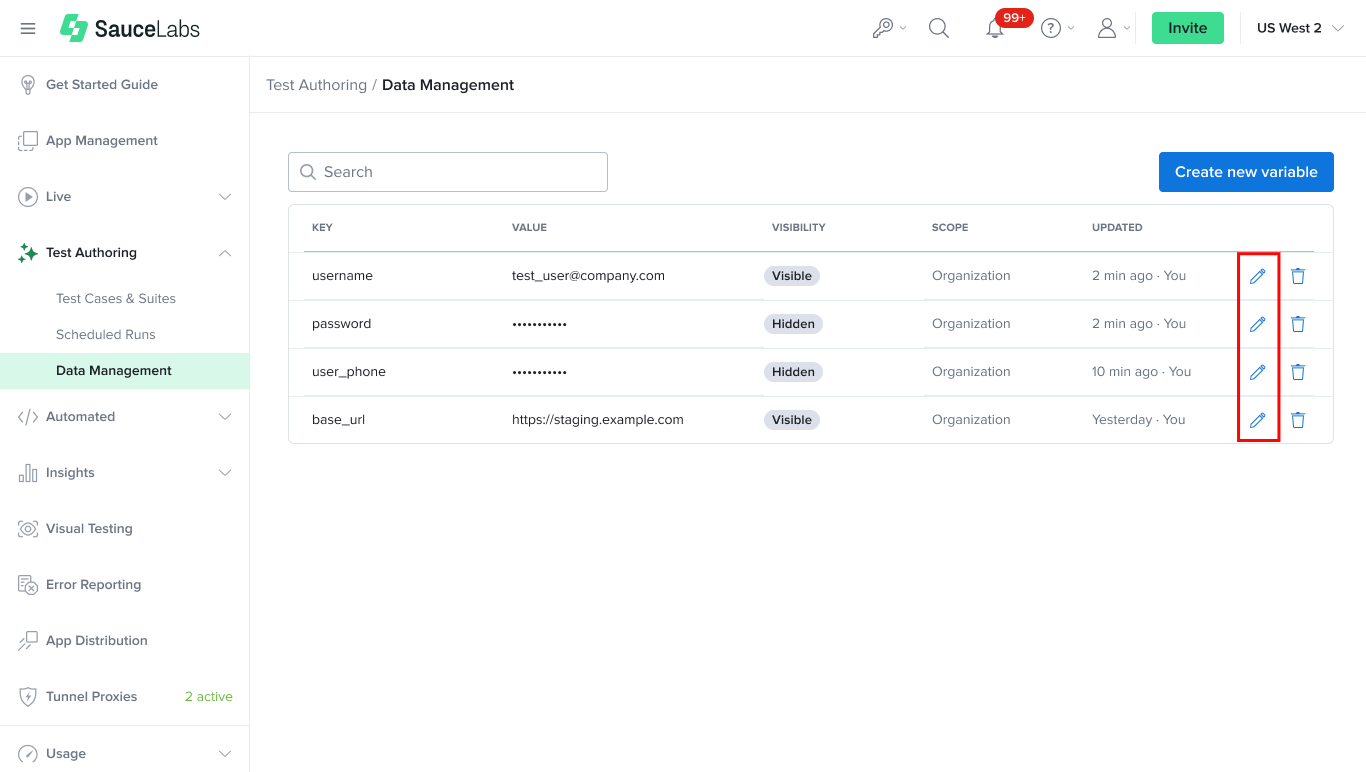
Step 1: On the Data Management page, locate the variable you want to update and select Edit.
Step 2: Click the Edit icon next to the variable you want to update, modify the required fields, and then click Save to apply your changes.
Delete a Variable
Delete a variable when it is no longer needed or has been replaced by another variable. Once deleted, the variable is no longer available for use in test prompts.
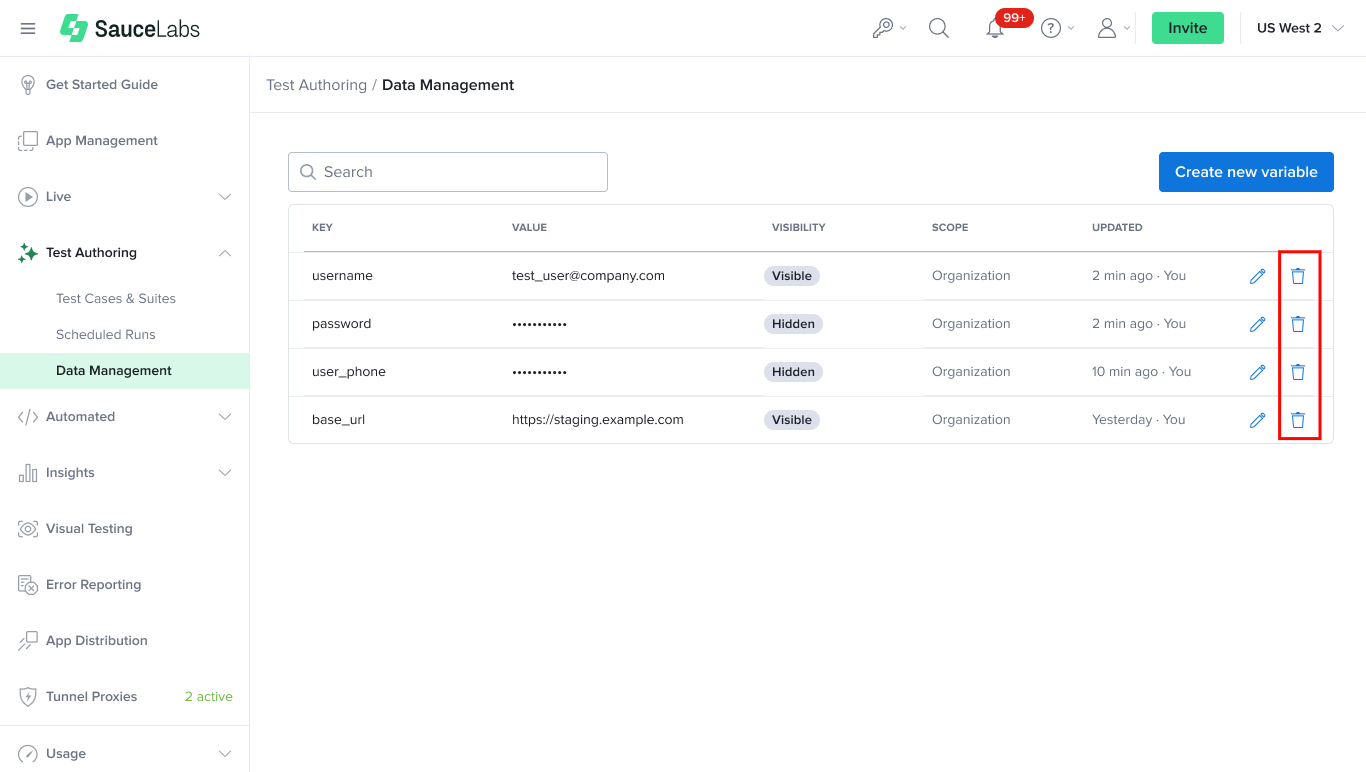
Step 1: On the Data Management page, locate the variable you want to remove.
Step 2: Click the Delete icon next to the variable, then confirm the deletion.
If a deleted variable is still referenced in a test prompt, the reference is no longer resolved and the {{variable_name}} text is treated as plain text. Replace or remove the reference, or create a new variable with the same name and scope, before running the test.
Use Variables in Prompts
Whether you write a prompt in the UI or send it through the API, the same rules apply: Sauce AI scans the prompt for {{...}} references and substitutes the stored values when each step is executed.
Variable Reference Syntax
| Syntax | Description |
|---|---|
{{variable_name}} | Resolves to the most specific variable with that name that applies to the test (see Resolution Order). |
{{org:variable_name}} | Resolves only to the organization-scoped variable with that name. |
{{team:variable_name}} | Resolves only to the team-scoped variable with that name. |
{{testSuite:<suite_id>:variable_name}} | Resolves only to the variable defined on the test suite with the given UUID (dashed or dashless). |
{{testCase:<test_case_id>:variable_name}} | Resolves only to the variable defined on the test case with the given test case ID. |
Variable names may contain lowercase letters, digits, and underscores (_) only. Whitespace inside the braces is ignored, so {{ org:username }} and {{org:username}} are equivalent.
For example:
Go to {{org:base_url}}, log in using {{team:username}} and {{team:password}}, then verify the dashboard is displayed.
Resolution Order
When you reference a variable without a scope prefix, such as {{password}}, Sauce AI selects the variable with that name from the most specific scope that applies to the test, in the following order:
- Test case variables defined on the current test case
- Test suite variables defined on the suite the test case belongs to
- Team variables
- Org variables
For example, if both an org-scoped and a team-scoped variable named password exist, {{password}} resolves to the team-scoped value. To force a specific scope, use an explicit prefix such as {{org:password}}.
Test case and test suite variables are only considered for a bare {{variable_name}} reference when the test already has a test case ID or test suite ID, for example when running an existing test case. During initial generation of a new test case, only team and org variables can be resolved without an explicit scope.
Unresolved Variables
If a reference does not match any variable you have access to, it is not treated as an error. The {{...}} text is left in the prompt as-is and is passed to the AI as plain text. Make sure the variable exists in the expected scope before running the test, and double-check the spelling of the variable name.
Insert a Variable in the UI
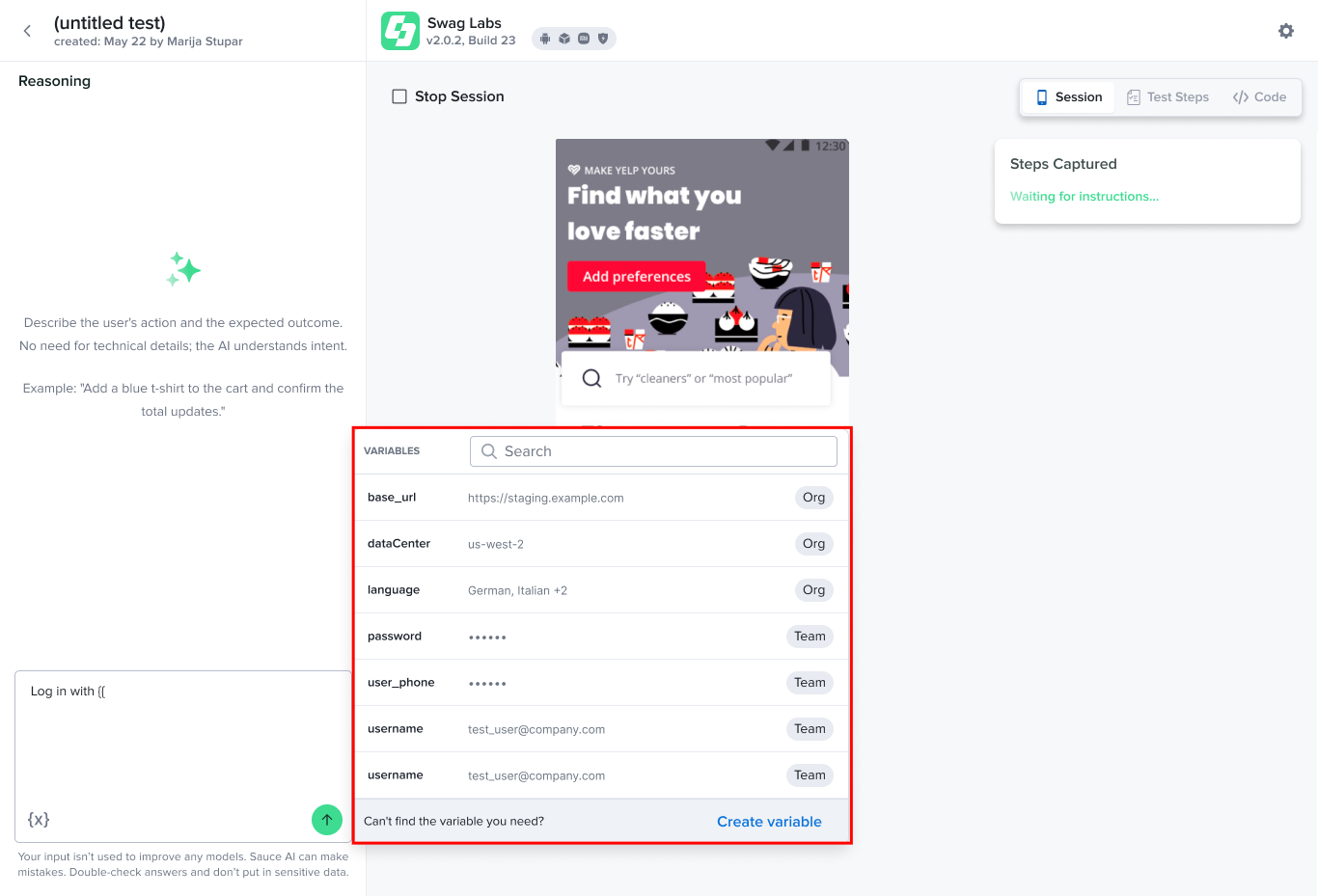
Step 1: Open or create a test case in Test Authoring. In the prompt editor, replace hardcoded values with variables by typing {{ or selecting the {x} icon to open the variable picker.
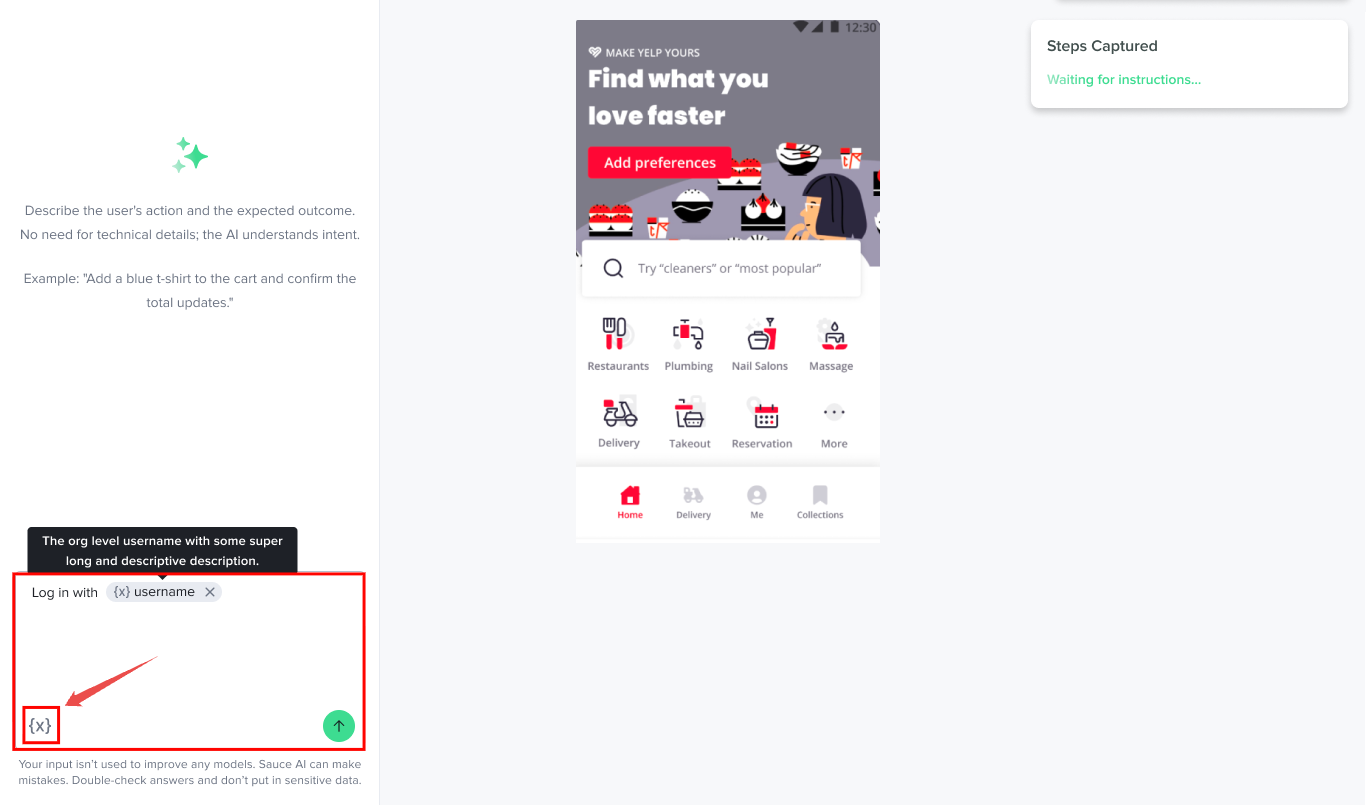
Step 2: Use the Search box to locate a variable, or browse the available list and select the required variable. The selected variable is automatically inserted into the prompt using the following syntax:
{{variable_name}}
For example:
Log in using {{username}} and {{password}}, then verify the dashboard is displayed.
Complete your test prompt, then click Start Session to begin test generation. During the test run, Sauce AI resolves all referenced variables using their stored values while keeping the actual values separate from the prompt.
Use Variables in the API
When you create test cases through the AI Test Authoring API, MCP, or an IDE plugin, reference variables directly in the prompt text using the same {{...}} syntax. No additional request parameters are required.
curl -X POST "https://api.us-west-1.saucelabs.com/ai-authoring/v1/testcases/generate" \
  -u "$SAUCE_USERNAME:$SAUCE_ACCESS_KEY" \
  -H "Content-Type: application/json" \
  -d '{
    "name": "Login smoke test",
    "runSettings": {
      "target": {
        "capabilities": {
          "browserName": "chrome",
          "platformName": "Windows 11"
        }
      },
      "testUrl": "https://www.saucedemo.com"
    },
    "promptSettings": {
      "intent": "Log in using {{org:username}} and {{team:password}}, then verify the products page is displayed."
    }
  }'
You can create and manage the variables themselves through the /variables endpoints of the AI Test Authoring API. When creating a variable, set scope to org, team, testSuite, or testCase, and set isSecret to true for values that should be hidden.