Managing Concurrency
Your subscription to the Sauce Labs Virtual Cloud or Real Device Cloud entitles you to run a certain amount of concurrent tests as many times as you like within a given region. In essence, this means you pay for the ability to run at your peak needs and you can run at that as frequently as you like. Your concurrency can be used for both automated and live testing.
Managing your concurrency throughout your organization is an important aspect of administering your Sauce Labs account. We provide multiple options to make it easy for you to optimize your usage and enable your releases to go out smoothly. Concurrency is defined at two levels, the organization and the team level.
Setting Parallel Limits in Common Frameworks
The first and foremost way to manage how many concurrent tests to run on Sauce Labs is to use the out of the box mechanisms available in your test framework. For convenience we have included some of the more populare frameworks below but please consult the documentation for your specific framework to learn more.
Usage Reporting & Notifications
Sauce Labs provides you robust mechanisms to inspect your organization's usage. This includes seeing your organization wide usage over time and a team breakdown. To learn more see Usage Report.
We also provide notification mechanisms to alert you when your organization is reaching its subscription amount. To learn more about these see Usage Notifications.
Team Management
Enterprise Plans only
If your organization has multiple teams sharing a Sauce Labs account, you can use Team Limits to ensure that your organization's concurrency is distributed among different teams.
If you are an org admin, you can view and control your organization's concurrency limits:
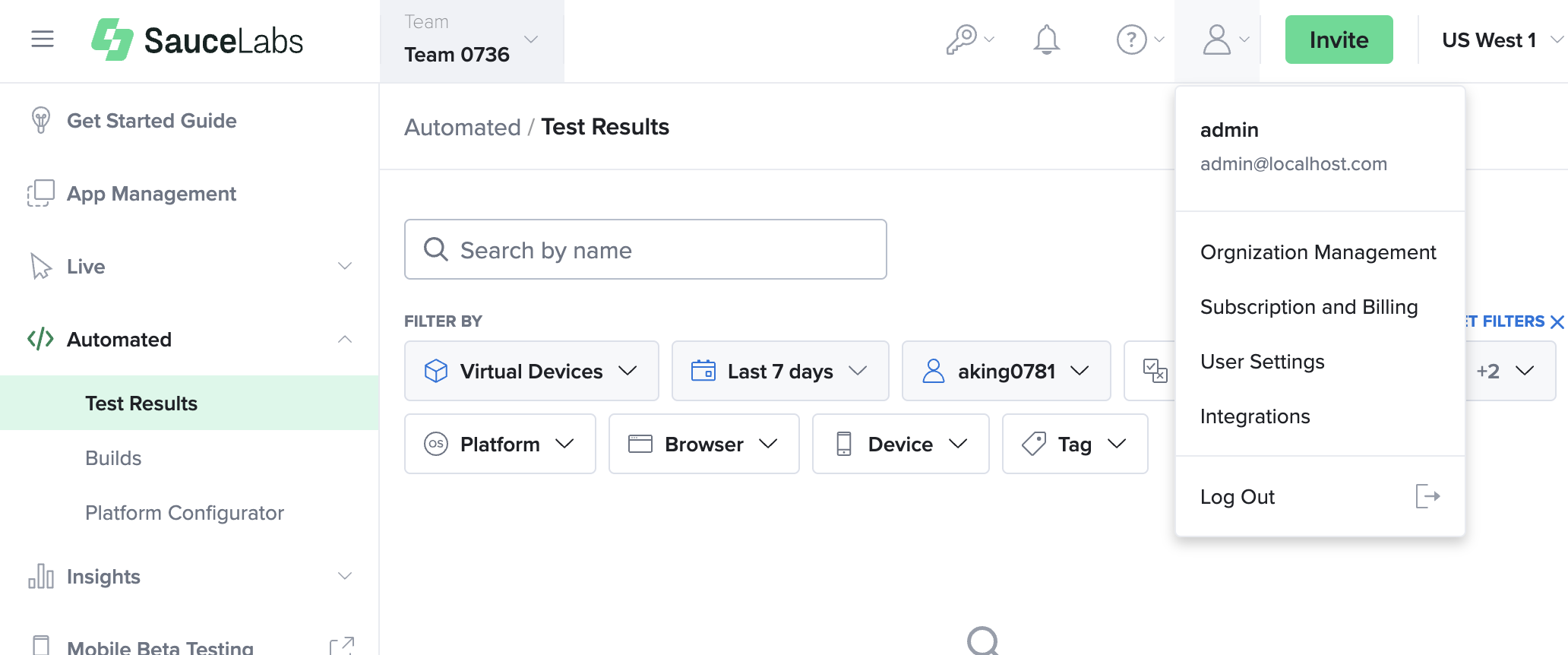
- In Sauce Labs, click ACCOUNT and then click Organization Management.
-
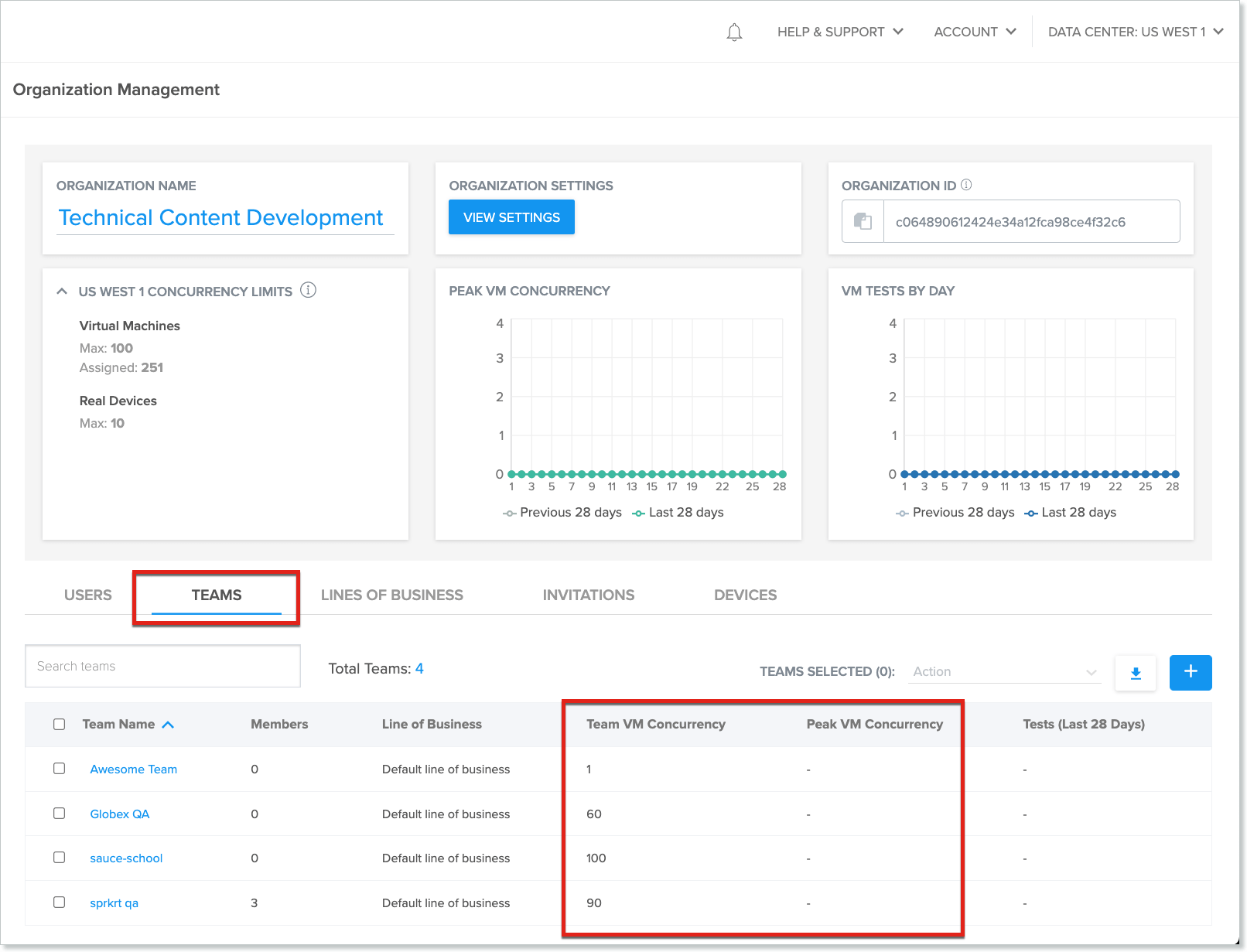
On the Organization Management page, under the ORGANIZATION NAME box, concurrency limits will be displayed for the selected data center.
-
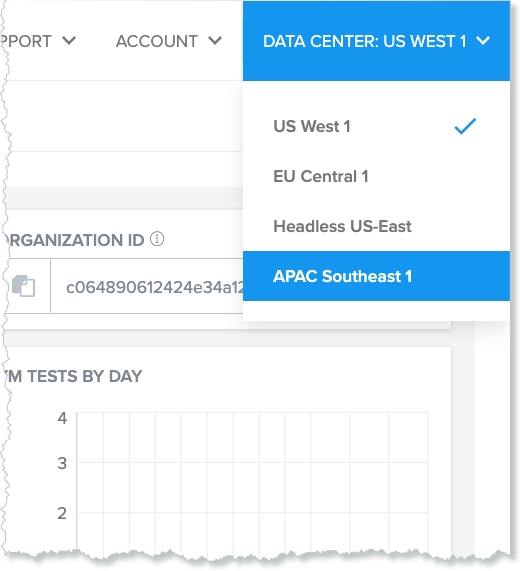
To view the limits for another data center, in the upper-right corner of the window, click the DATA CENTER dropdown and select the relevant data center.
- On the Organization Management page, click the TEAMS tab. Team VM Concurrency, Team Real Device Concurrency and Peak VM Concurrency will be displayed for each team in the organization.
For more usage information, see Viewing and Exporting Usage Data.
-
To allocate concurrency to teams, click on the team name to open the Teams tab.
-
Under the Teams tab, Enter Team VM Concurrency or Team Real Device Concurrency and click on Update.
Virtual Cloud Concurrency
For an example, let's say the organization admin allocates 100 VMs to Team A, which has five members. Since the members of a team share the team's VM limit, the number of concurrent tests being run by the five team members cannot exceed 100. However, concurrency limits cannot be set at the user level, so User A could be running 20 tests, while user B is running 50 tests, and users C, D, and E are running 10 tests each. Or User A could be running 100 tests while Users B, C, D, and E are not running any tests.
Concurrency API
In some cases you might want to configure your test framework to dynamically pull real time information about your organization and teams concurrency usage.
You can use the Get User Concurrency API endpoint to retrieve a specific user's concurrency usage compared with their organization and team concurrency allowances.
curl -u "$SAUCE_USERNAME:$SAUCE_ACCESS_KEY" --location \
--request GET 'https://api.us-west-1.saucelabs.com/rest/v1.2/users/<username>/concurrency' \
--header 'Content-Type: application/json' \ | json_pp
Exceeding Virtual Cloud Concurrency
Sauce Labs provides Organization Admins with configurable controls that determine how their Virtual Device Cloud (VDC) tests behave when the organization reaches its purchased concurrency limits.
Organizations can now choose between two concurrency modes:
Fixed Concurrency
In Fixed mode, the organization’s total concurrency cannot exceed the contractual limit. If your scheduled or running tests reach the limit:
- Additional jobs enter the throttling queue (available to Enterprise customers).
- The queue can hold up to CCY (purchased concurrency total) + 150 jobs.
- Jobs are executed in order as concurrency becomes available.
- No burst capacity is allowed. This mode is recommended for customers who need strict cost control and predictable usage.
On-Demand Concurrency
On-Demand mode allows organizations to temporarily exceed their contracted concurrency by up to 10%. This provides elasticity during peak testing periods. When On-Demand is enabled:
- Tests may run up to 110% of your contracted limit.
- Additional usage beyond contractual limits is billable.
- A throttling queue (CCY + 150) is still enforced once the 10% burst limit is reached.
- Multi-resource features from older plans are closed, Mac and non-Mac concurrency are enforced consistently. Available concurrency includes tests across all virtual platforms — iOS, Android, and desktop browsers.
This mode is ideal for customers who occasionally need more parallelization than their contract provides.
What Happens to Running or Scheduled Jobs When You Hit the Limit?
When your organization reaches its available concurrency, any additional tests are placed into a throttling queue, which is available to Enterprise customers. These queued jobs remain there until capacity opens and they can be executed in order. If you switch between Fixed and On-Demand concurrency modes, the way these queued jobs are handled may change; refer to the Organization Settings documentation for details on how mode changes affect queued and pending jobs.
Real Device Cloud Concurrency
If your subscription includes access to our Public Real Device Cloud, then your subscription quantity equals the amount of concurrent tests that can be run on Sauce Labs real devices.
In case your organization has private real devices, check out how to manage and assign your private devices.
Exceeding Public Real Device Cloud Concurrency
If your organization attempts to run more tests than your subscription permits then your tests will be queued until an available concurrency slot becomes available. Your request for a device will queue for up to 15 minutes by default and it can be configured up to a maximum of 30 minutes by adjusting your Test Configuration Options.
For example, if you have a Public Real Device Cloud concurrency limit of 5 and you attempt to run 10 tests, 5 of the tests will run immediately and the other 5 will be queued until one of the other tests finishes.