Manage Universe Access with Unified Identity
Applicable to Sauce Labs customers and new Error Reporting customers from August 24 2026
Error Reporting uses the Sauce Labs unified identity system to manage access to individual universes. Organization Administrators can grant or revoke users' access to specific universes independently of their organization membership.
Once a user is granted access to a universe, they can access it through Error Reporting and can be added to teams and projects within that universe.
Assign a User to a Universe
Organization Administrators can grant users access to individual Error Reporting universes. Once access is assigned, the user can access the universe and work with the teams and projects available within it.
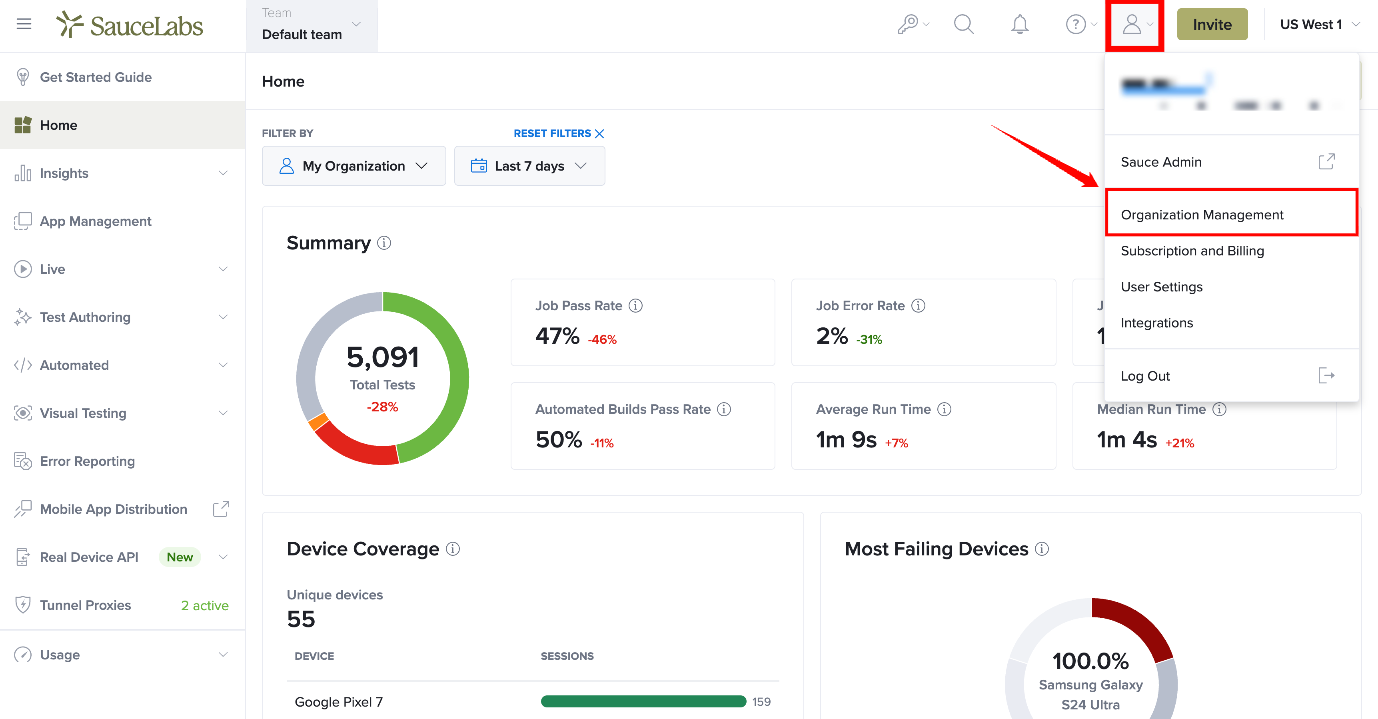
Step 1: Sign in to Sauce Labs as an Organization Administrator, then select Profile → Organization Management.
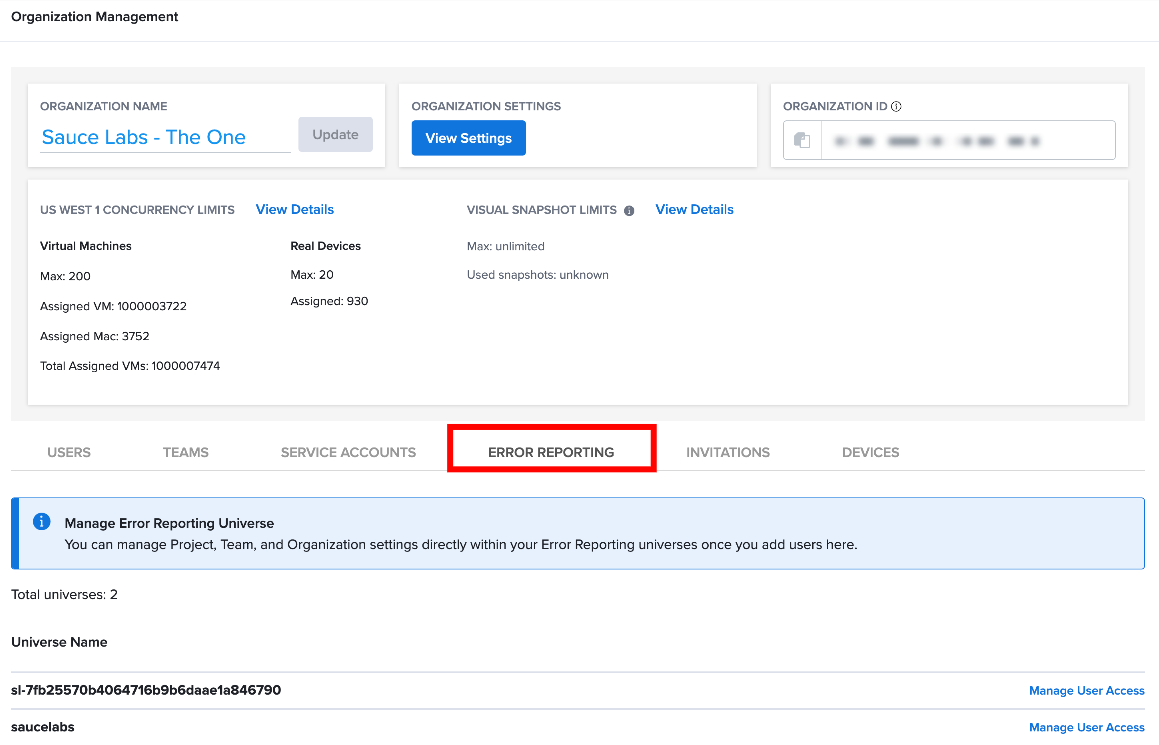
Step 2: On the Organization Management page, select the Error Reporting tab.
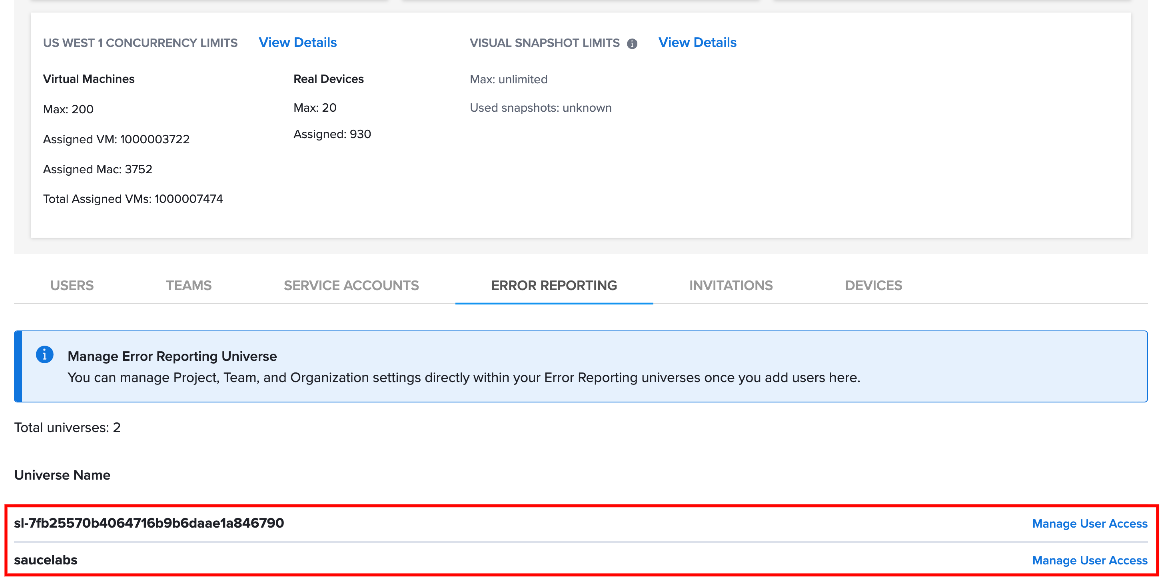
Step 3: On the Error Reporting tab, view the list of available Universe URLs, then select Manage User Access next to the universe you want to manage.
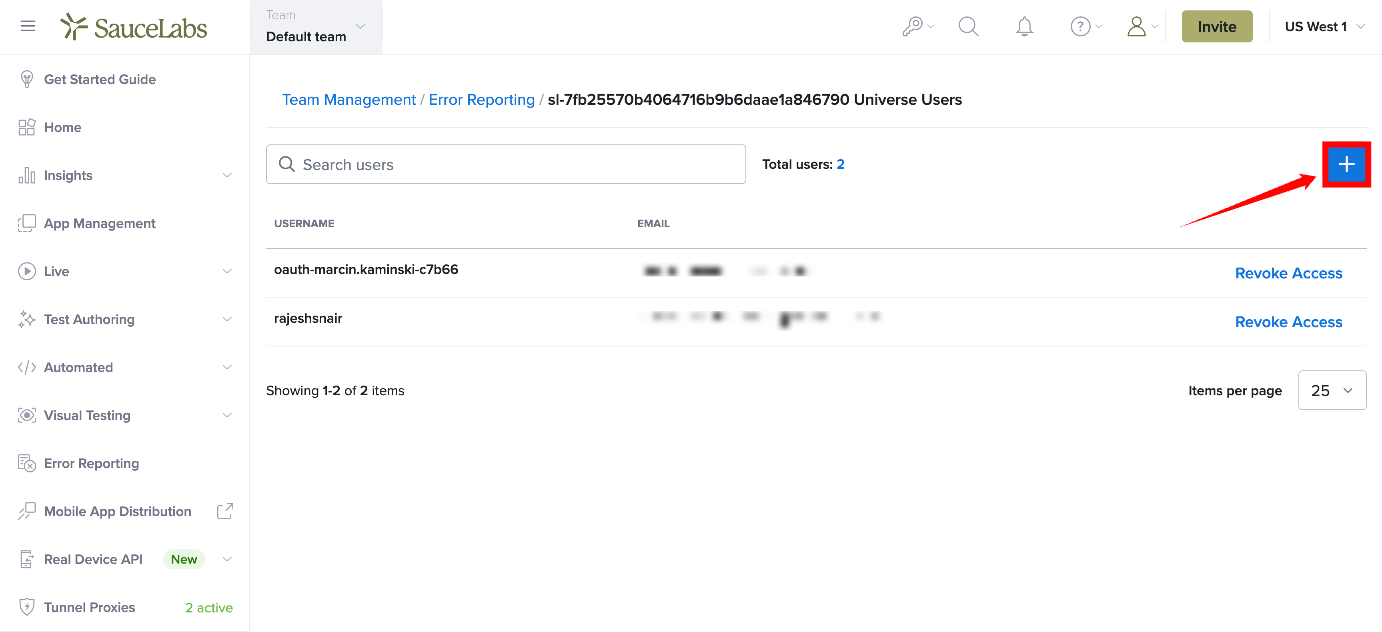
Step 4: On the Manage User Access page, select the + (Add) icon to grant access to a new user.
Step 5: In the Assign Access dialog, search for the user by name or email address.
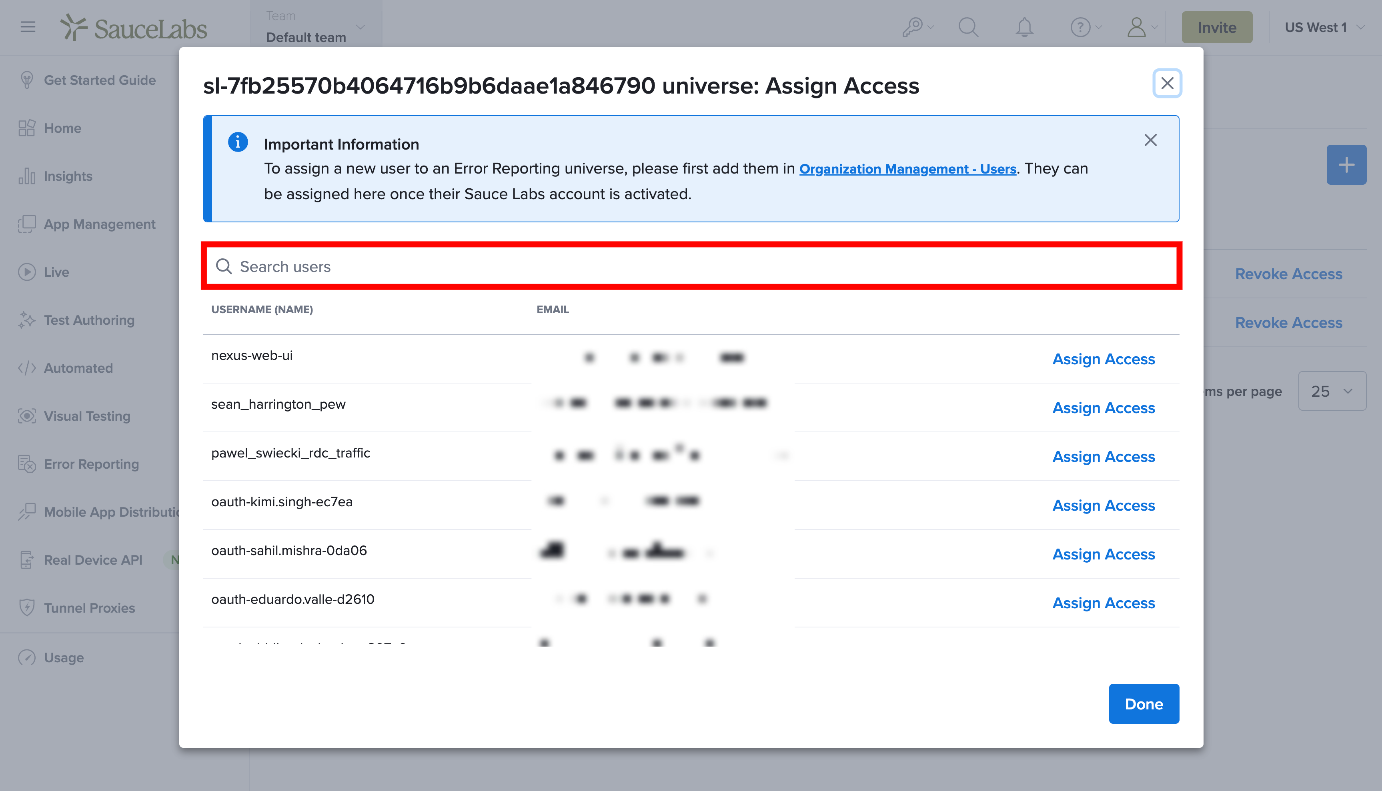
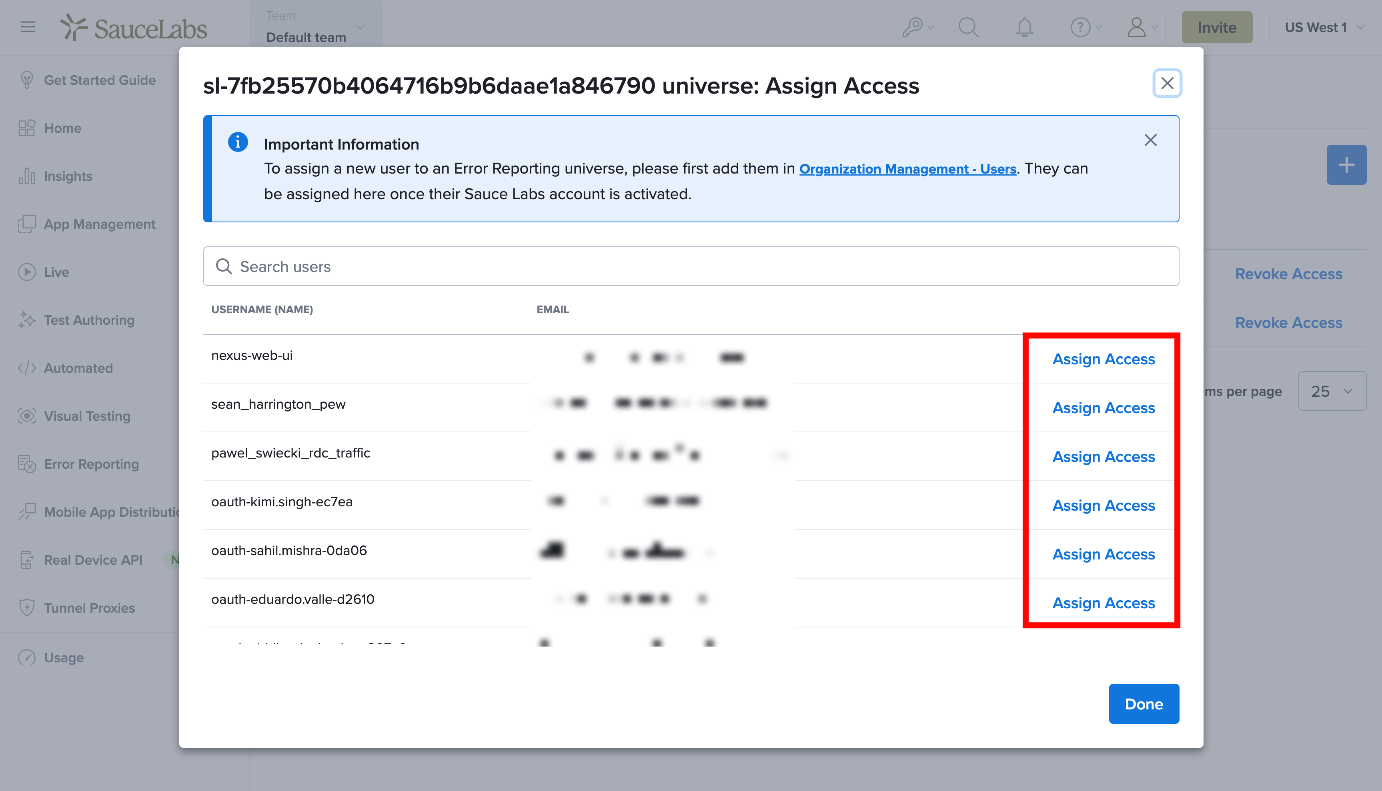
Step 6: Select Assign Access next to the user you want to grant access to.
Step 7: Select Done to save the changes.
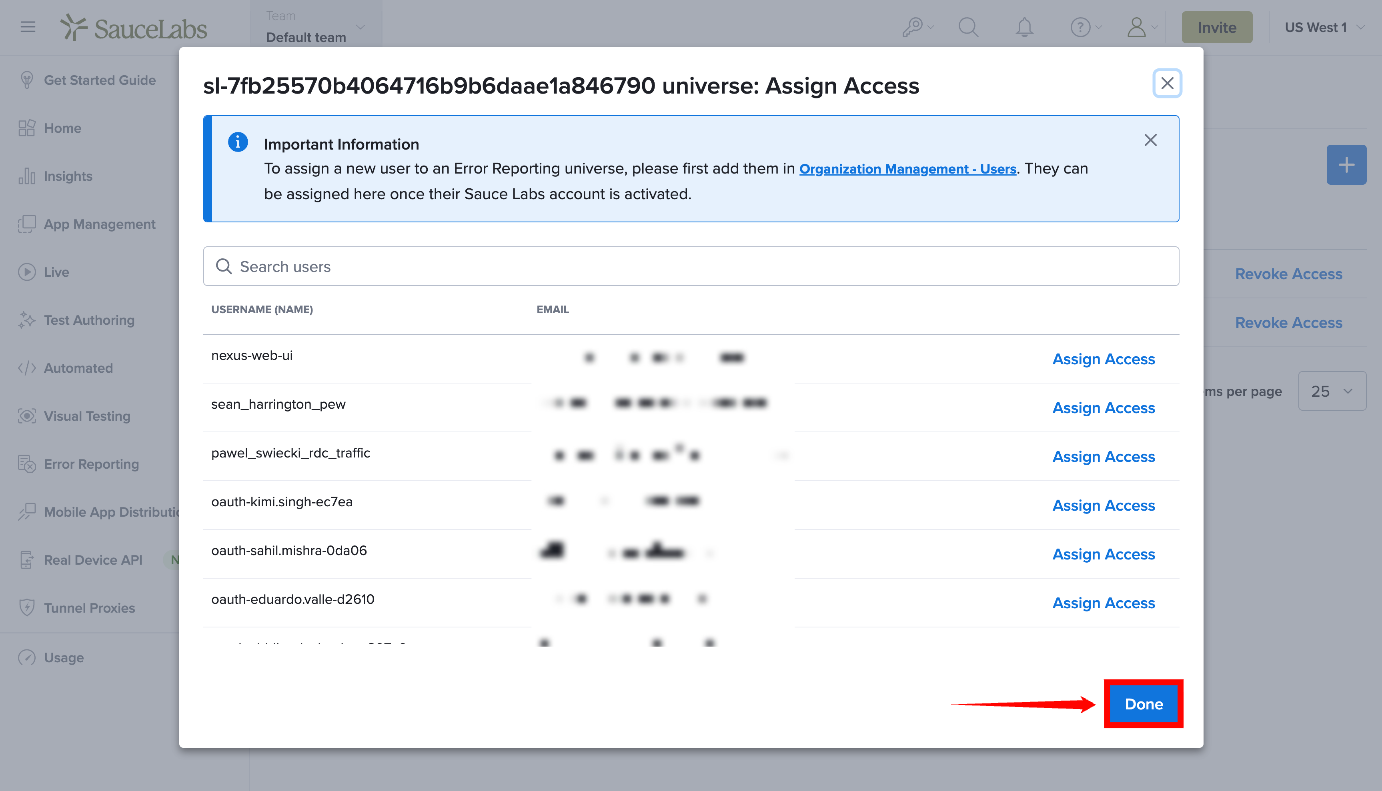
Once access has been granted, the user can sign in to Sauce Labs and access the selected universe. The user can then be added to teams and projects within that universe as needed.
If you see "No access" after signing in to Sauce Labs, you are not assigned to the requested Error Reporting universe. Contact your Sauce Labs organization administrator and request access to the required universe. Include the universe name or URL in your request.
Revoke a User's Universe Access
Organization Administrators can revoke a user's access to a universe when they no longer need access or when their permissions need to be adjusted. Revoking access prevents the user from accessing the selected universe while keeping their membership in the Sauce Labs organization intact.
To revoke a user's access to a universe, select Revoke Access next to the user on the Manage User Access page.
After access is revoked, the user can no longer access the selected universe.
Revoking universe access does not remove the user from your Sauce Labs organization. To completely remove a user, you must remove them separately through the organization administration settings.
Assign Access to Multiple Universes
Users can be granted access to multiple Error Reporting universes. Universe access is managed independently, so access granted to one universe does not automatically apply to any other universe.
To grant access to multiple universes, repeat the steps in Assign a User to a Universe for each additional universe the user needs to access.
After access has been assigned, the user can sign in to Sauce Labs and access the universes they have been granted access to. Access is managed separately for each universe.
Example
An organization may have separate Production, Staging, and Development universes. If a user requires access to all three, an Organization Administrator must assign access to each universe individually.
User Management with Unified Identity
Error Reporting is part of the Sauce Labs ecosystem and uses a unified identity experience. Existing Backtrace customers can migrate their universes to Sauce Labs, while new Sauce Labs customers can add Error Reporting directly to their organization without requiring a separate Backtrace account.
Existing Backtrace Customers
Existing Backtrace customers can migrate their universes to Sauce Labs. As part of the migration, administrators must update their authentication configuration to ensure users can continue to access Error Reporting.
Update the following settings:
- Update your Single Sign-On (SSO) configuration to point to Sauce Labs.
- Update your SAML metadata so users can continue to authenticate.
New Sauce Labs Customers
New Sauce Labs customers can add Error Reporting to their organization and start working with universes without creating a separate Backtrace account.
After setup is complete, users can access Error Reporting directly through the Sauce Labs platform.
Access Error Reporting
After signing in to Sauce Labs, select Error Reporting from the left navigation menu.
- If you have access to a single universe, you are automatically redirected to that universe.
- If you have access to multiple universes, you are prompted to select the universe you want to access.
- The Error Reporting page displays the list of universes assigned to your account.
If an Organization Administrator does not have a universe assigned, a default universe is automatically created so they can begin using Error Reporting. Additional users can be assigned to universes by an Organization Administrator.