Filter Controls for Coverage
Use the filters in the Coverage report to narrow coverage data to the testing environments, users, and time periods you want to analyze. Filtering allows you to focus on specific test activity instead of reviewing coverage data for the entire organization.
Use the Coverage report filters to focus on the testing data you want to review. After opening Insights > Coverage, select the coverage type that matches the environment you want to analyze.
At the top of the Coverage report, select one of the following tabs:
| Coverage Type | Description |
|---|---|
| Devices | Displays coverage data for the devices used to run your tests. |
| Browsers | Displays coverage data for the browsers used to run your tests. |
| OS | Displays coverage data for the operating systems used to run your tests. |
The selected coverage type determines the data displayed in the report and the filtering options available for further analysis.
Available Filters
The Coverage report provides different filters depending on the selected coverage type and test environment. Use these filters to narrow the data displayed in the report.
| Filter | Available For | Purpose |
|---|---|---|
| Test Environment | Devices, OS | Select Virtual Cloud or Real Devices coverage. |
| Owner | Devices, Browsers, OS | Filter coverage data by jobs, organization, team, or service account. |
| Device Group | Devices, OS | Filter coverage data by Public or Private devices. |
| Time Period | Devices, Browsers, OS | Specify the period for which you want to view coverage data. |
Test Environment
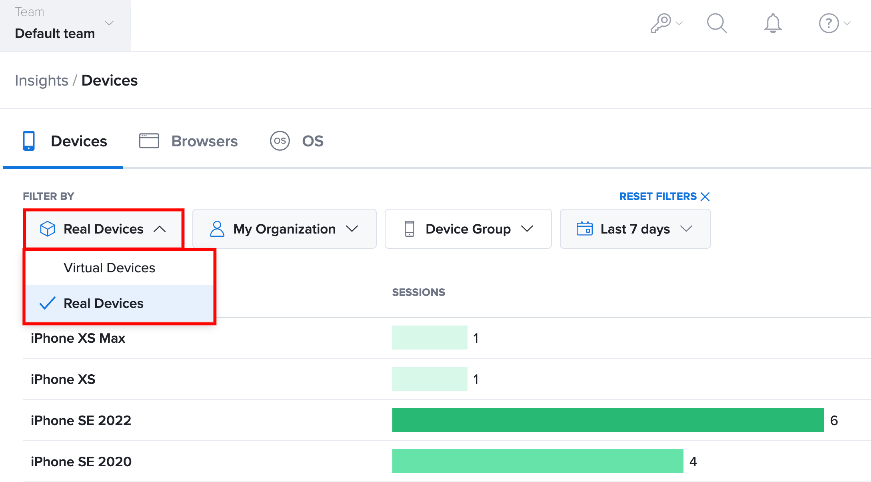
When viewing Devices or OS coverage, select the environment for which you want to view data.
| Environment | Description |
|---|---|
| Virtual Cloud | Displays coverage for desktop web applications, mobile Emulators, and Simulators. |
| Real Devices | Displays coverage for physical devices located in Sauce Labs data centers and connected to the platform. |
Select the appropriate environment to limit the report to the corresponding test infrastructure.
Owner
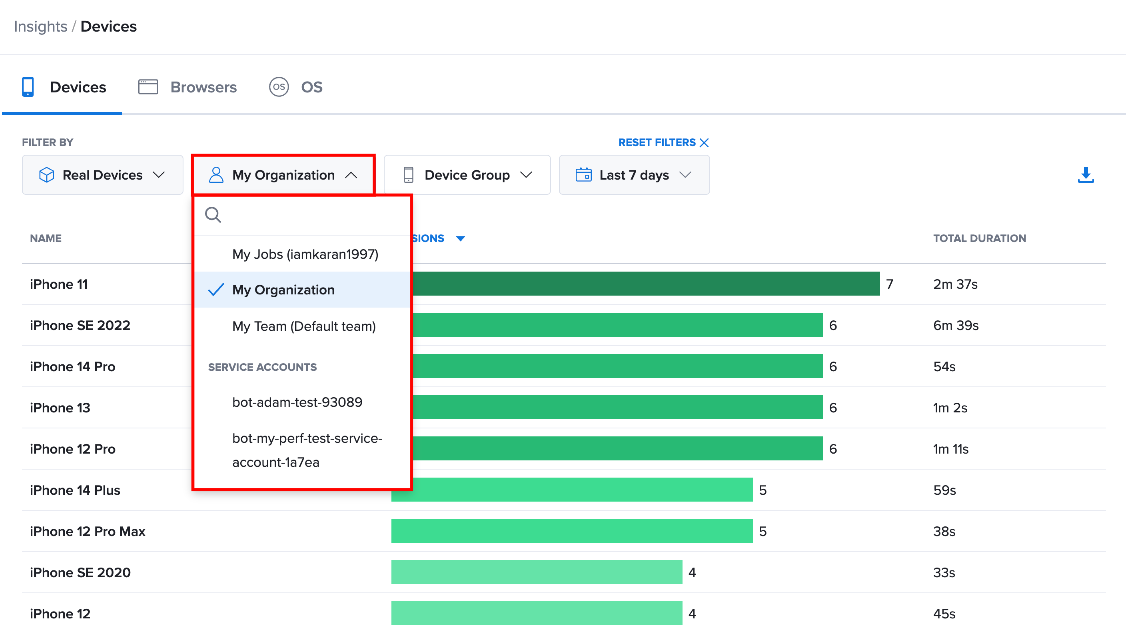
Use the Owner filter to control whose test activity is included in the Coverage report. This allows you to review coverage for a specific user, team, or organization instead of viewing all available test activity.
Select the Owner filter and choose the required option:
| Option | Description |
|---|---|
| My Jobs | Displays coverage data for your test jobs. |
| My Organization | Displays coverage data for tests across your organization. |
| My Team | Displays coverage data for tests associated with your current team. |
| Service Accounts | Displays coverage data for tests run through a selected service account. |
After selecting an owner, the Coverage report updates to show only the test activity associated with that selection.
Time Period
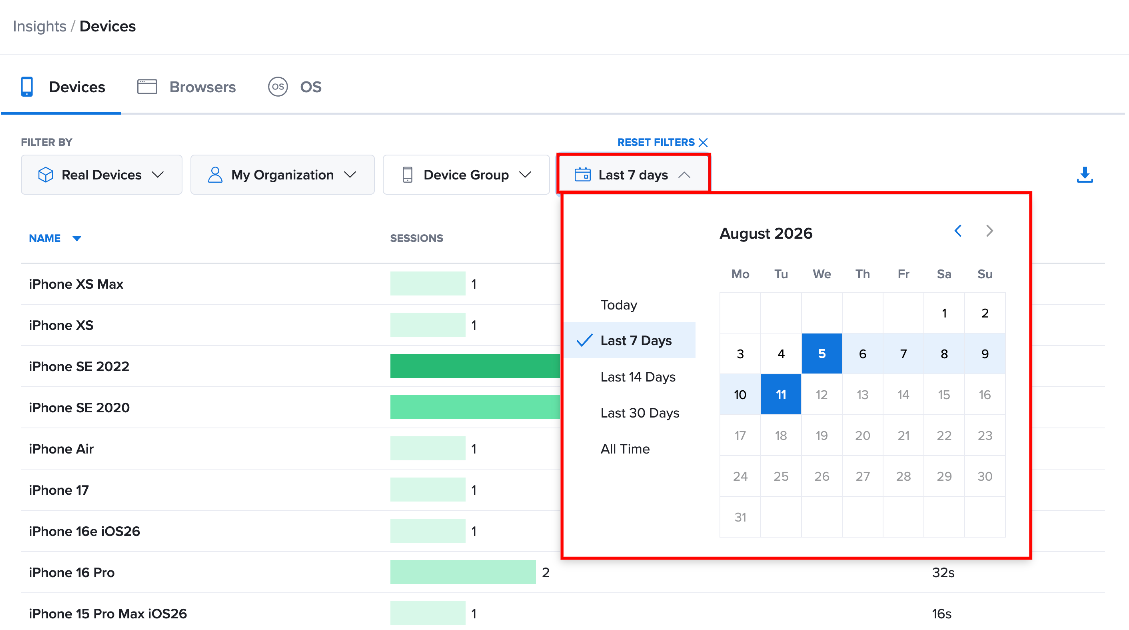
Use the Time Period filter to specify the period for which you want to review coverage data.
The report updates to show only the browsers, devices, or operating systems used during the selected period.
Browsers and devices that were not tested during the selected period are omitted from the report.
Device Group
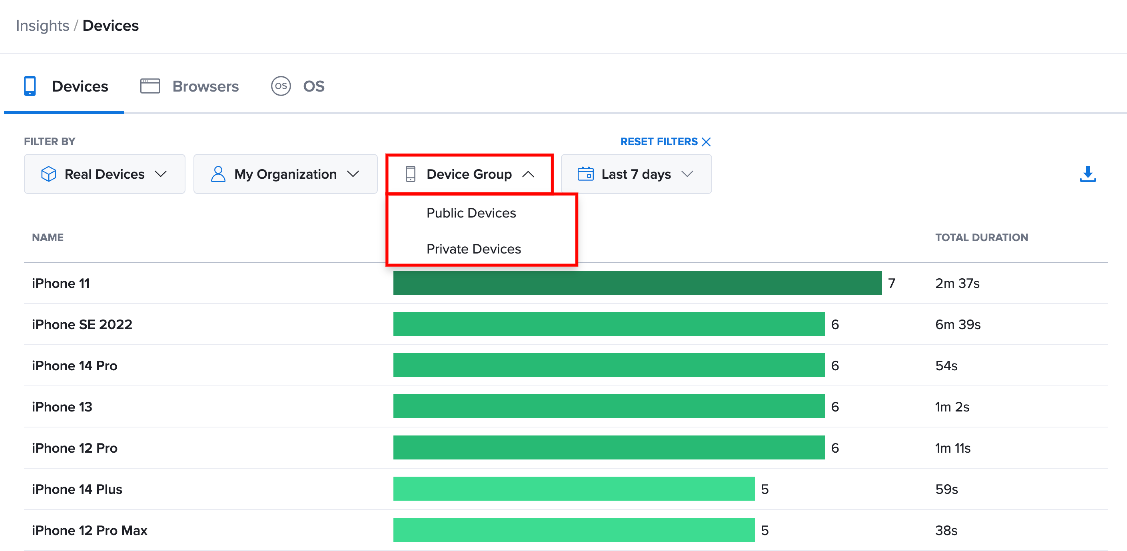
When viewing coverage for Real Devices, use the Device Group filter to specify which real devices you want to include.
You can select:
-
Public - View coverage for public real devices.
-
Private - View coverage for private real devices.
This allows you to focus the report on the specific type of real-device environment used by your tests.
Apply Multiple Filters
You can combine the available filters to narrow the report further. For example, you can select Devices, choose Real Devices, specify an Owner, and select a Time Period to view coverage for that user's real-device testing during the selected period.
After applying the filters, the Coverage report displays the matching test activity, including the number of Sessions and Total Duration for each environment.