Filter Controls for Error Tracking
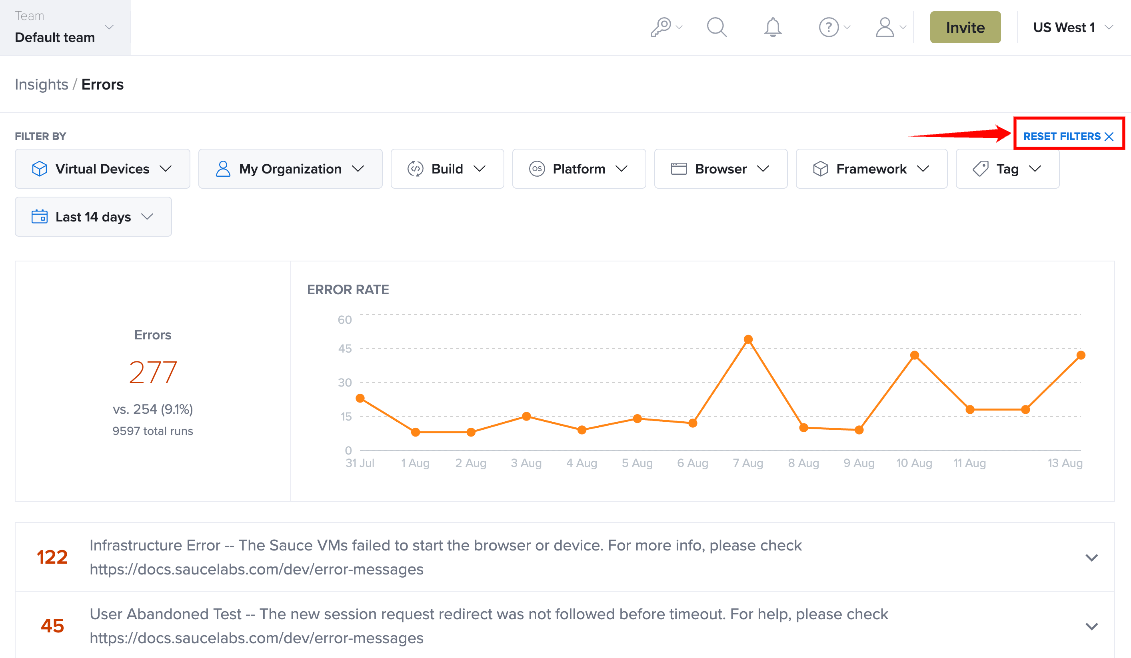
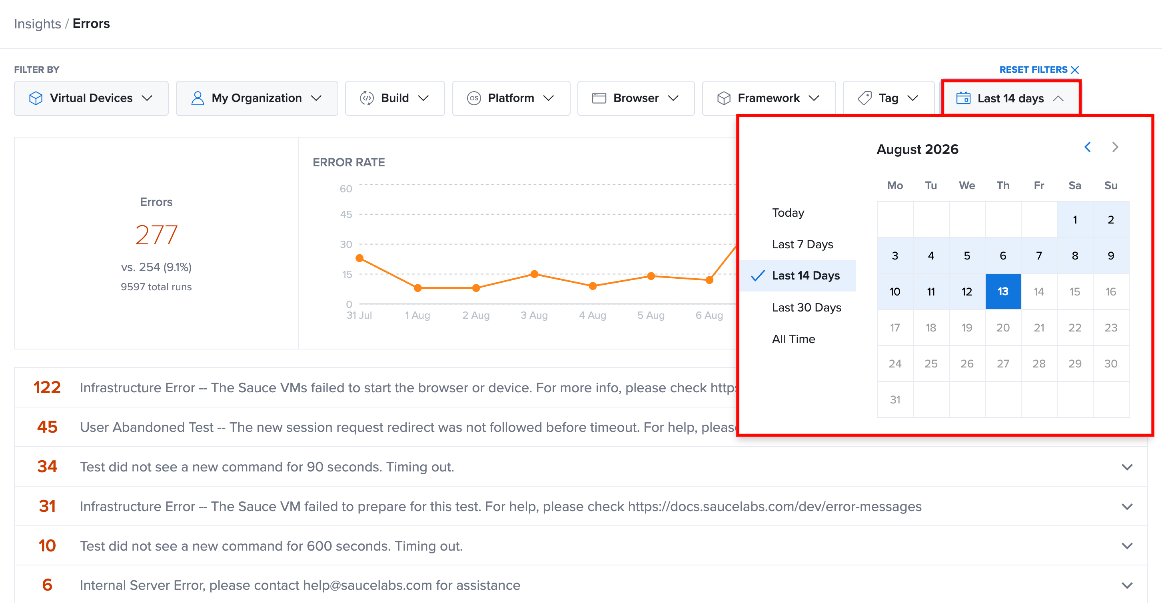
The Errors page provides filters that help you narrow error data and analyze test errors under specific conditions. You can filter errors by testing environment, owner, build, platform, browser, framework, tags, and time period.
You can combine multiple filters to focus the report on a specific set of test executions and identify patterns in your error data.
Available Filters
The Errors page includes the following filters for refining error data:
| Filter / Control | Description |
|---|---|
| Environment | Filters errors by Virtual Devices or Real Devices. |
| Owner | Selects the organization or team whose error data you want to review. |
| Build | Filters errors associated with a specific build. |
| Platform | Filters errors based on the platform used for the test. |
| Browser | Filters errors based on the browser used during the test. |
| Framework | Filters errors based on the testing framework. |
| Tag | Filters errors using tags assigned to test executions. |
| Time Period | Defines the period for which error data is displayed. |
| Reset Filters | Clears the selected filters and restores the default filter settings. |
Environment
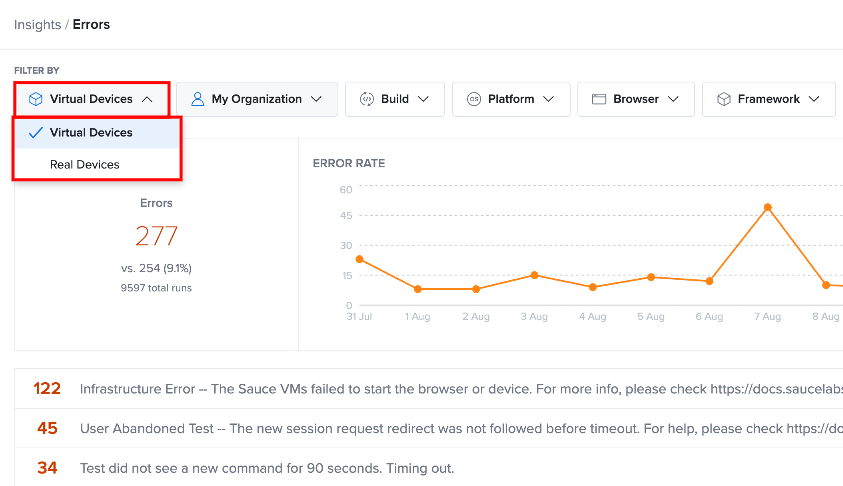
The Environment filter determines which testing environment is included in the error data.
Available options include:
-
Virtual Devices: Displays errors associated with virtual-device test executions.
-
Real Devices: Displays errors associated with real-device test executions.
Use this filter to determine whether errors are associated with a particular testing environment.
Owner
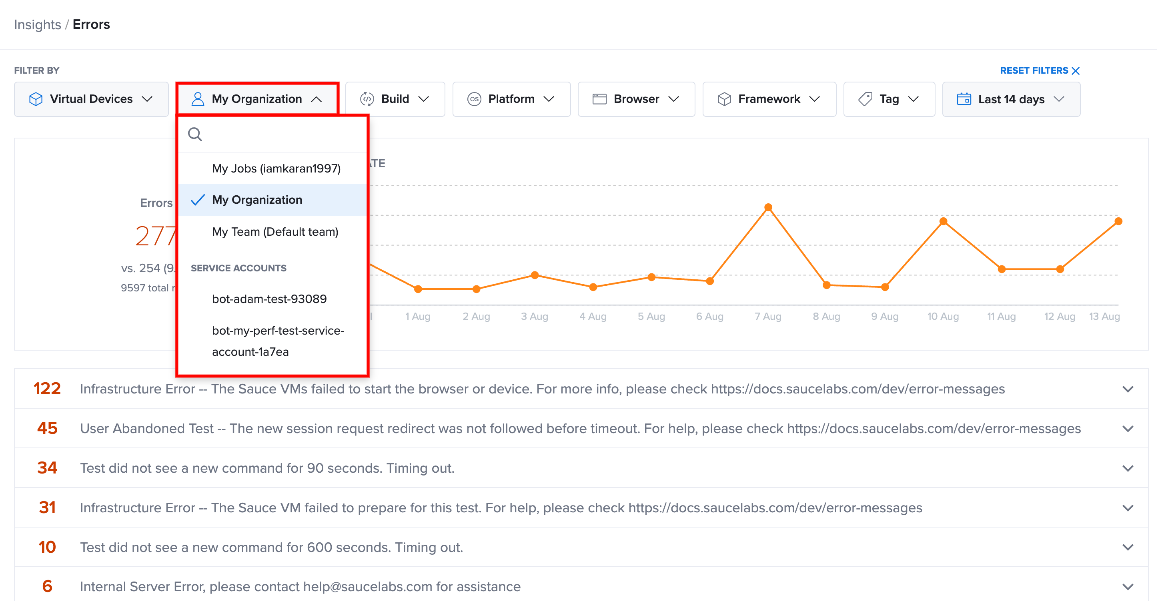
The Owner filter determines whose test errors are included in the report. You can view errors at the organization or team level, or narrow the results to a specific user or service account.
Available options include:
-
My Jobs: Displays errors from jobs associated with your user account.
-
My Organization: Displays errors across the organization.
-
My Team: Displays errors associated with your current team.
-
Users: Allows you to select a specific user and view their test errors.
-
Service Accounts: Allows you to select a service account and view errors from tests executed by that account.
This lets you analyze errors based on the person, team, organization, or service account responsible for the test execution.
Build
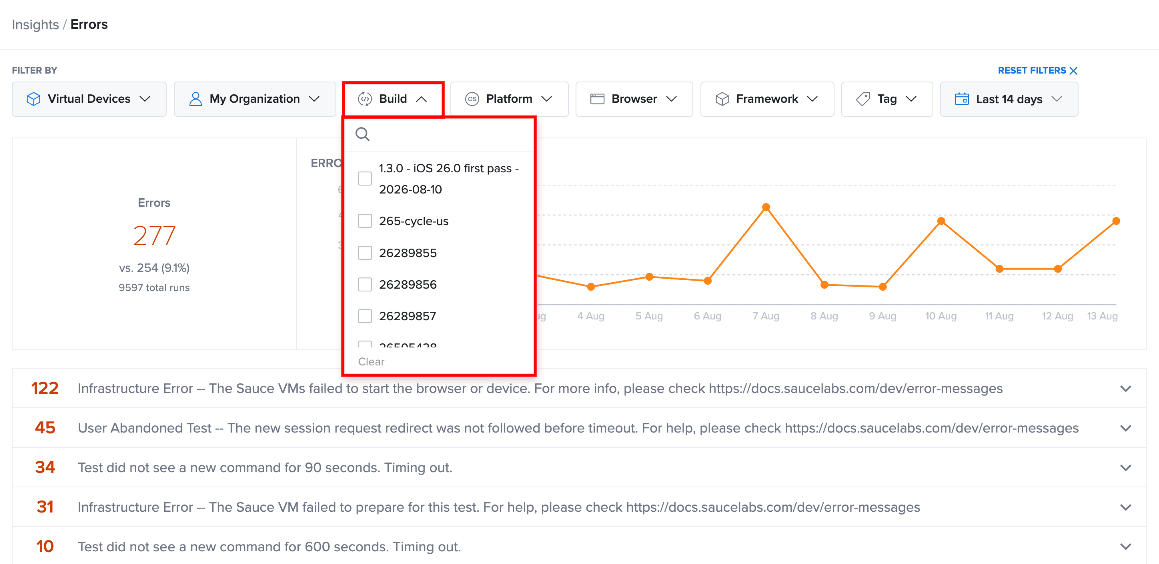
The Build filter lets you narrow error data to one or more specific builds. The list displays available builds by name or build identifier.
Select one or more builds to view errors associated with those builds. Use the search field to quickly find a specific build when the list contains many entries.
The selected builds are applied to the other filters and the Error Rate chart, allowing you to analyze errors for specific test builds.
Platform
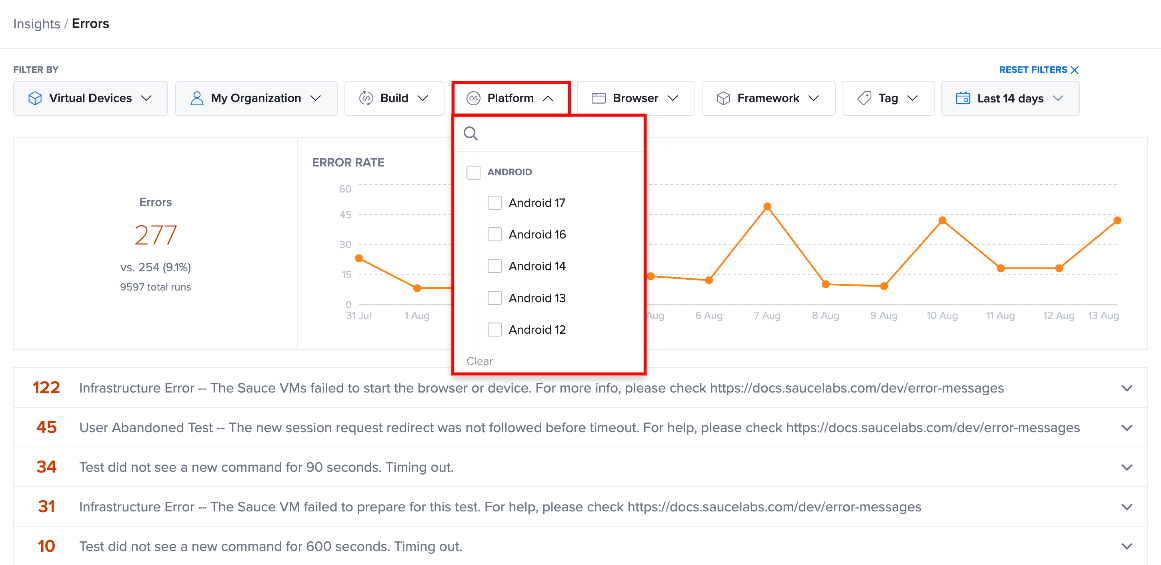
The Platform filter lets you narrow error data by operating system. Platforms are grouped by operating system, with individual versions available for selection.
Available platform groups include:
-
Android: Select a specific Android version.
-
Linux: Select Linux.
-
Mac: Select a specific macOS version, such as macOS Ventura.
-
Windows: Select a specific Windows version, such as Windows 11 or Windows 10.
-
Unknown: Select tests for which the platform could not be identified.
You can select one or more platforms or versions to focus the error results on specific operating systems.
Browser
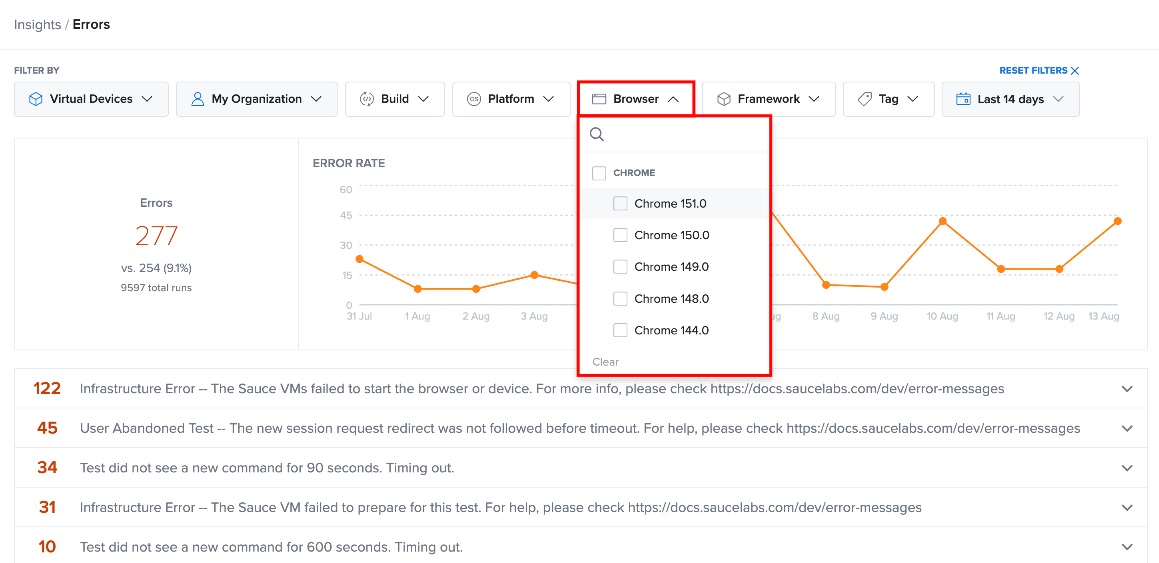
The Browser filter limits error data to test executions that used the selected browser.
Use this filter to determine whether an error occurs consistently across browsers or is associated with a particular browser configuration.
This can help identify browser-specific failures and narrow the scope of an investigation.
Framework
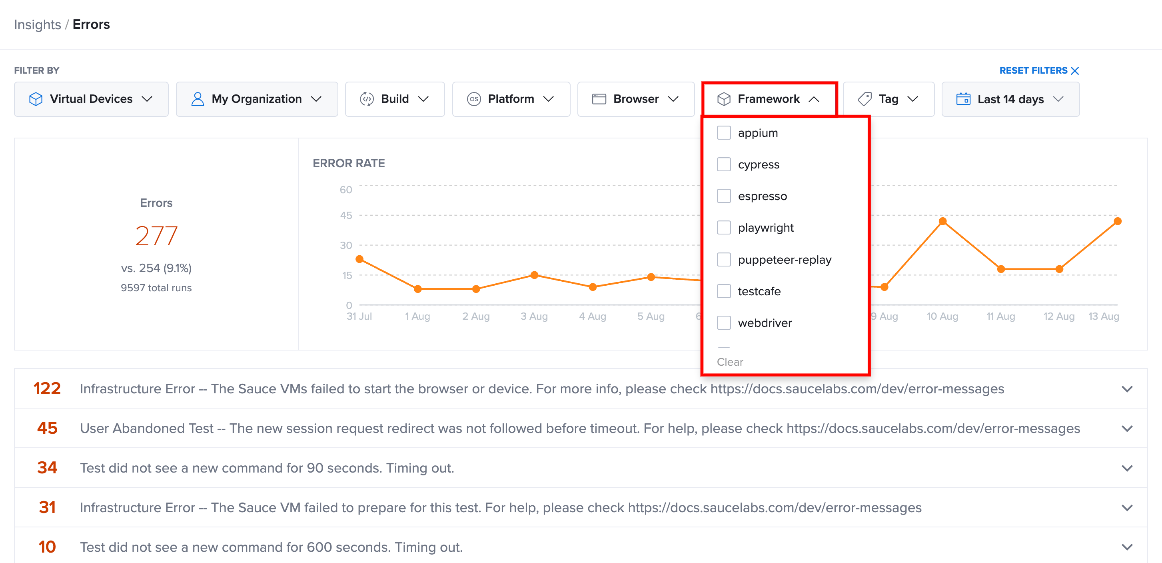
The Framework filter limits the displayed errors based on the testing framework used by the test execution.
Use this filter when investigating whether errors are concentrated in tests using a particular framework. This can help separate framework-related issues from errors that occur across different testing frameworks.
Tag
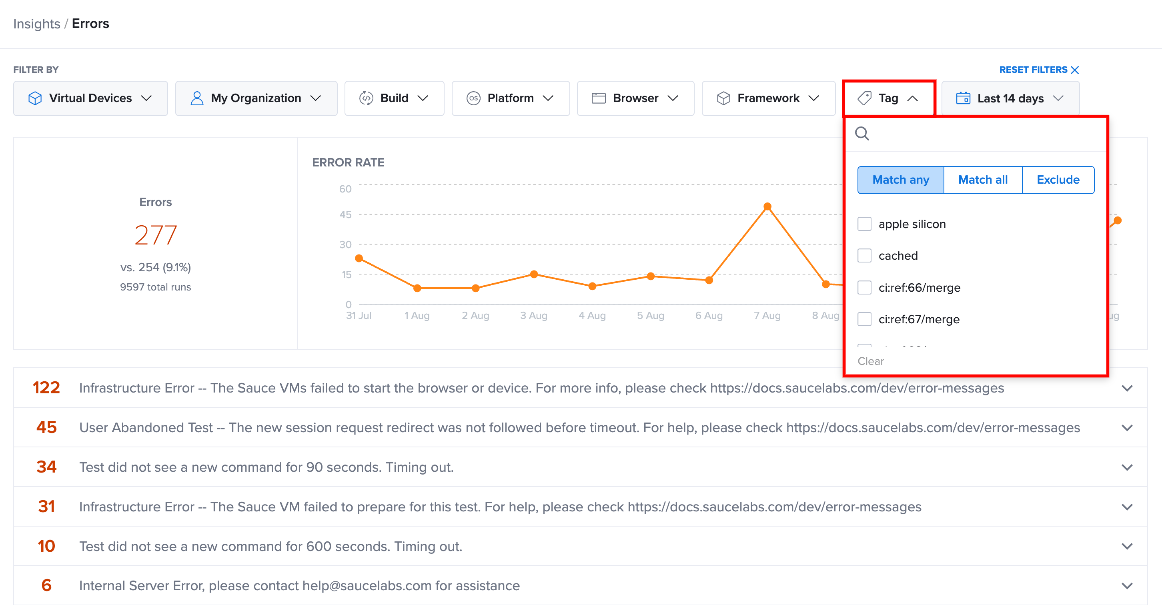
The Tag filter lets you narrow error data based on tags assigned to test executions.
You can use the available matching options to control how multiple selected tags are applied:
-
Match any: Includes errors associated with tests that have at least one of the selected tags.
-
Match all: Includes errors associated with tests that have all selected tags.
-
Exclude: Excludes errors associated with tests that have the selected tags.
Use the search field to find a specific tag, then select the tags you want to include or exclude. The selected tags are applied to the error data and Error Rate chart.
For example, you can select tags such as apple silicon, cached, or a CI reference to focus the error analysis on specific test groups or execution conditions.
Time Period
The Time Period filter determines the period covered by the Errors page. The selected period affects both the Error Rate chart and the Error Breakdown data.
Use the available time-period options to review recent error activity or analyze errors across a broader period.
Reset Filters
Use Reset Filters to clear the selected filters and return the Errors page to its default filter state.
Resetting the filters allows you to start a new analysis without the previously selected environment, owner, build, platform, browser, framework, tag, or time-period criteria.